

How to Create a Vendor Account on Skillvex?
Introduction:- Why Your Business Needs to Be on Skillvex 🚀
India’s local service industry is going digital—fast. Customers no longer flip through phone books or rely solely on word-of-mouth. They open their phones, search online, and book instantly. If your business isn’t visible on platforms like Skillvex, you’re invisible to thousands of potential customers.
But here’s the good news: bringing your business online is easier than you think. Whether you run a small salon, a busy restaurant, a legal consultancy, or a rental service, Skillvex provides the perfect digital storefront to showcase your offerings.
Everything you need to know about setting up a vendor account on Skillvex will be covered in this thorough vendor tutorial. We’ll cover registration, profile optimization, service listings, and pro tips to ensure your business stands out.
New to Skillvex? First, understand what makes us different. Read our introductory post: [What is Skillvex? Your Complete Guide to the Best Online Booking Platform] (Internal Link)
👨💼 What Does a Vendor Account on Skillvex Mean?
A vendor account on Skillvex is your business’s digital identity. Unlike a regular customer account where you only book services, a vendor account allows you to:
✅ Create a professional business profile visible to thousands of customers
✅ List multiple services with individual pricing and descriptions
✅ Manage bookings, cancellations, and customer inquiries
✅ Receive and respond to customer reviews
✅ Track your business performance through analytics
✅ Access promotional features to boost visibility
Think of it as having a 24/7 storefront that never closes—reaching customers even while you sleep.
📝 Prerequisites Before You Start
Before creating your vendor account, gather these essentials:
✅ Required Information
📞 Active mobile number (for verification)
📧 Valid email address (for important notifications)
🏢 Business name and full address (as registered)
📋 List of services you offer (with approximate pricing)
📸 High-quality photos of your work, premises, or team
🗒️ Write a clear description.
📆 Ensure that time slots, calendar dates, and opening hours are set and finalized in advance.
🆔 Business registration documents (recommended, not mandatory)
📲Download the list of categories.
Pro Tip:- Professional photos can increase booking rates by up to 40%. Invest time in taking clear, well-lit images of your best work.
🚶 Create Your Vendor Account (Account Setup 🔑)
Follow these simple steps to create your vendor account on Skillvex and bring your business online.
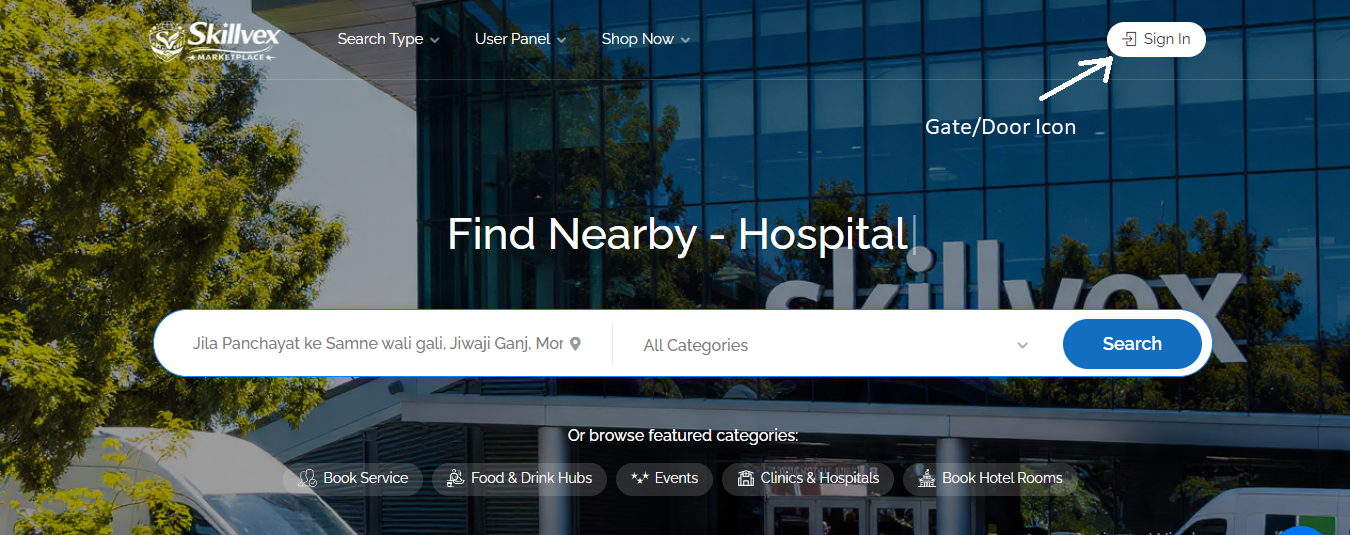
- Visit the Website:- Go to your Google/Chrome web browser and search for Skillvex.com.
- Find the Gate or Door Icon:- Locate an icon in the upper-right corner of the screen that resembles a gate or a door. Click on that icon. Then, click on the “Register” tab.
- Choose Your Path:- You will see two tabs—”Guest” and “Owner.” Make sure you select the “Owner” tab.
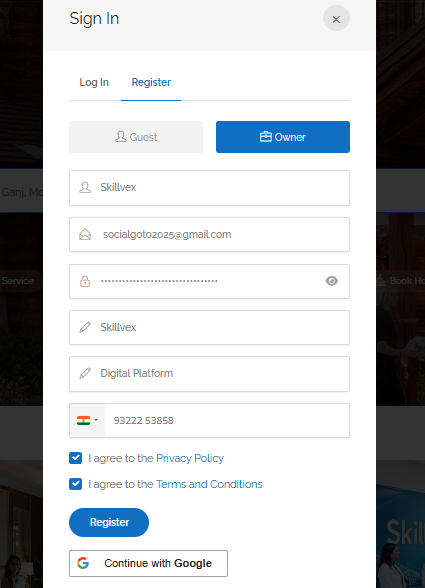
- Fill Your Details:-
- ✅ Create your username (e.g., Suryansh)
- ✅ Enter a valid email address
- ✅ Set a strong password
- ✅ Enter your first and last names.
- ✅ Enter your mobile number (Verify with OTP)
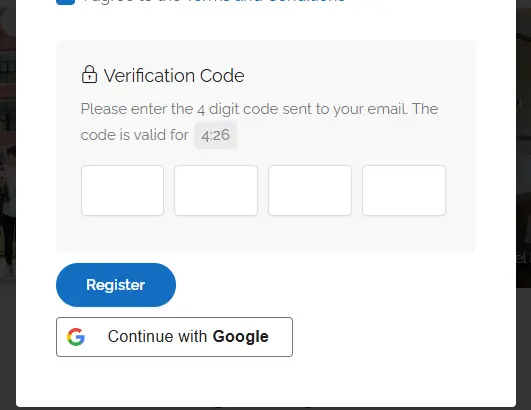
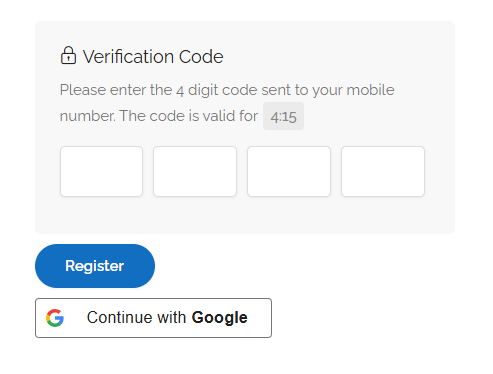
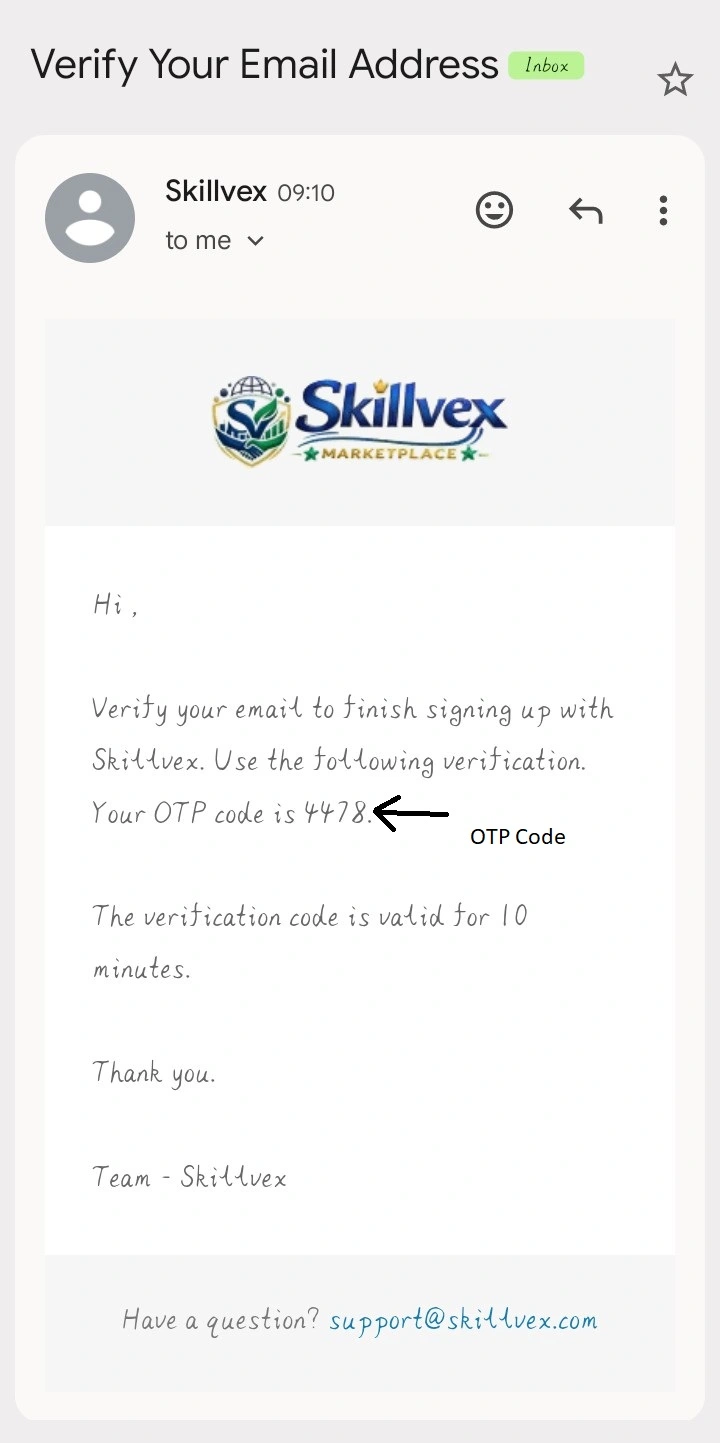
Verify with OTP :- Enter your mobile number. Submit the form. After submitting the form, check your mobile number or email for a 4-digit code (OTP). Verify that code (OTP). As soon as you enter the code (OTP), your mobile number or email will be verified. Your account will become active immediately.
You will now be automatically logged in as a Vendor/Business Owner. You will then see the default dashboard page on the left side. You can refer to this as the Command Area.
Here, you will find a comprehensive suite of powerful tools that enable you to list your business and services, helping you propel your business growth to new heights.
🎉 Congratulations! Your vendor account, complete with advanced tools, has been successfully created. But you’re not done yet—now comes the important part.
🏢 💼 Finish your business profile and launch your services.
This is a crucial part for you and your business. Here, you set up your online storefront. Fill out each section precisely:
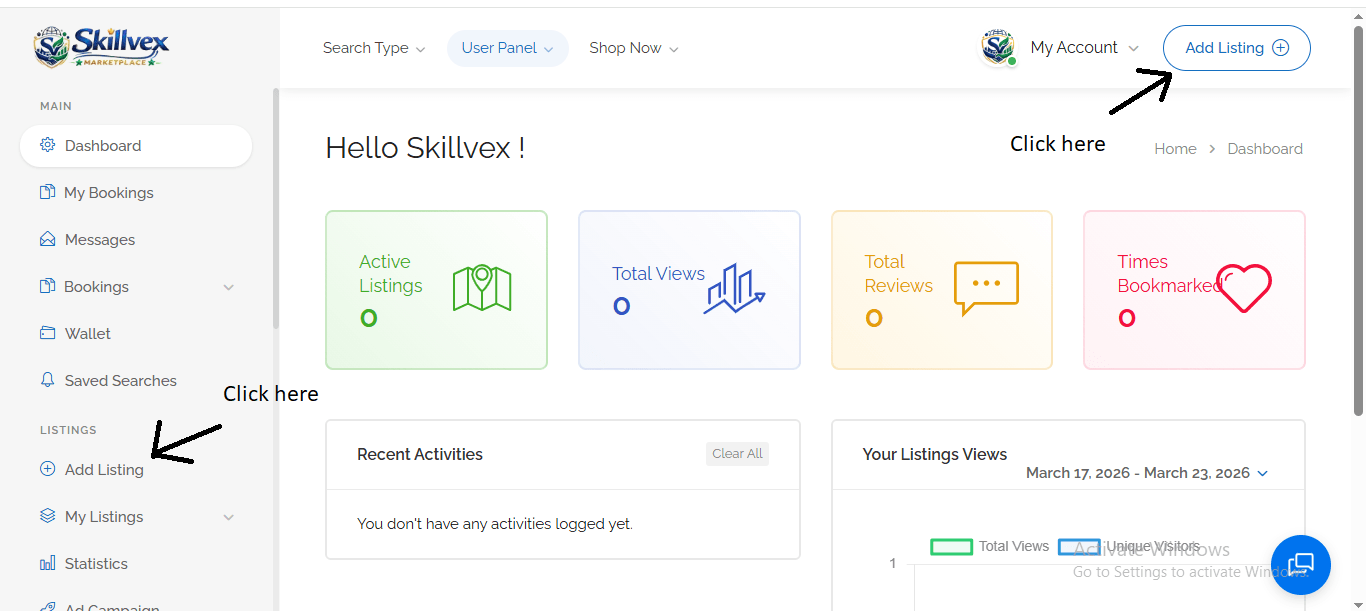
Step 1:- You will see two options on your dashboard tab to create a Business Profile: one is seventh from the top on the left side, and the second is in the top-right corner, next to the Profile icon—click “Add Listing.”
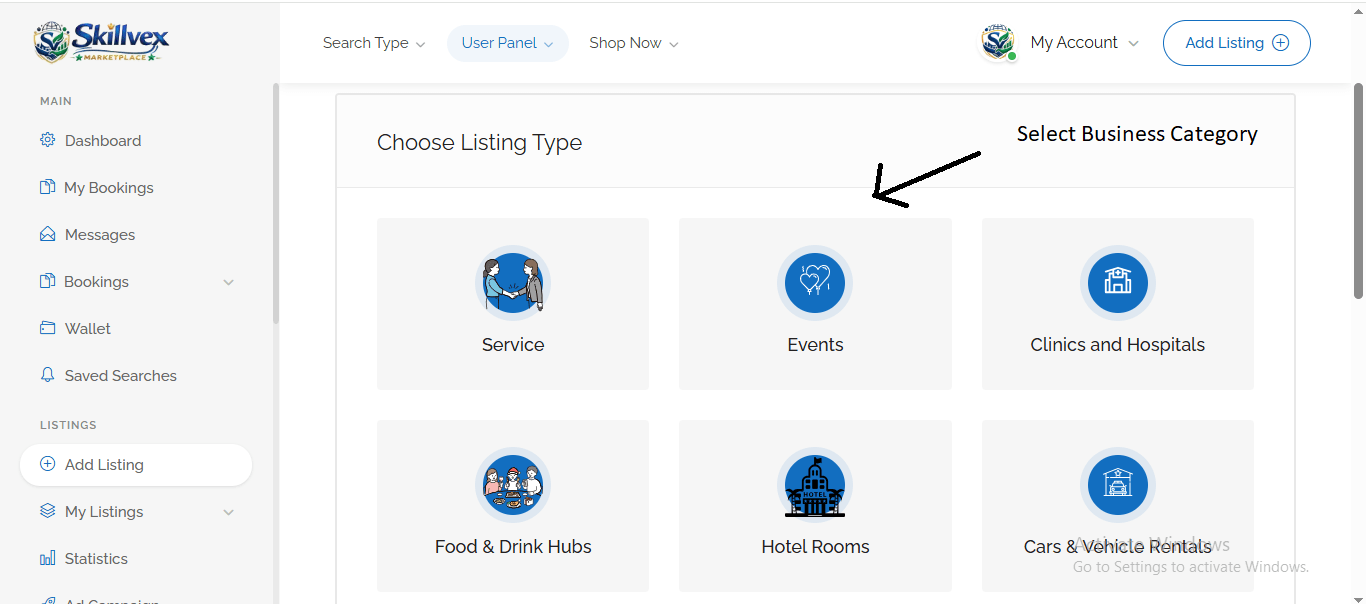
Step 2:- Upon clicking the “Add Listing” button, you will see several main business categories. Now, select the main category for your business—such as Hotel Rooms, Services, Cars & Vehicle Rentals, Clinics & Hospitals, or Home-Based Services. As soon as you select your business’s main category, sub-options tailored to that specific category will begin to appear.
Step 3:- Here, you are required to provide all information related to your business or service. Please ensure that the information you provide is entirely accurate. The information submitted by you will be verified by senior officials of our company. Your business or service will be made live only after the provided information has been confirmed to be completely accurate. If any incorrect information is detected, your business or service may be cancelled.
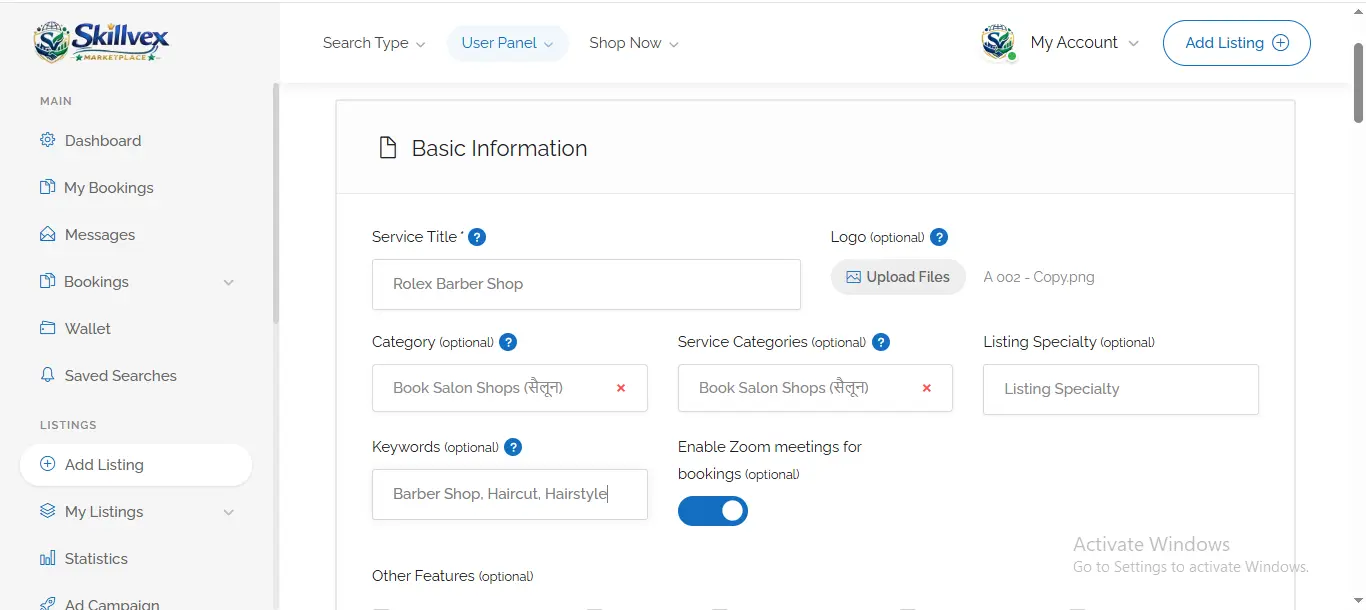
- Note — Points to Remember:- The options displayed here are based on the primary business category you have selected. Depending on the specific primary business category you have chosen, you may see a different set of options—the number of available choices may be fewer or greater. Therefore, please proceed with full confidence.
📝 Section 1 :- Basic Information
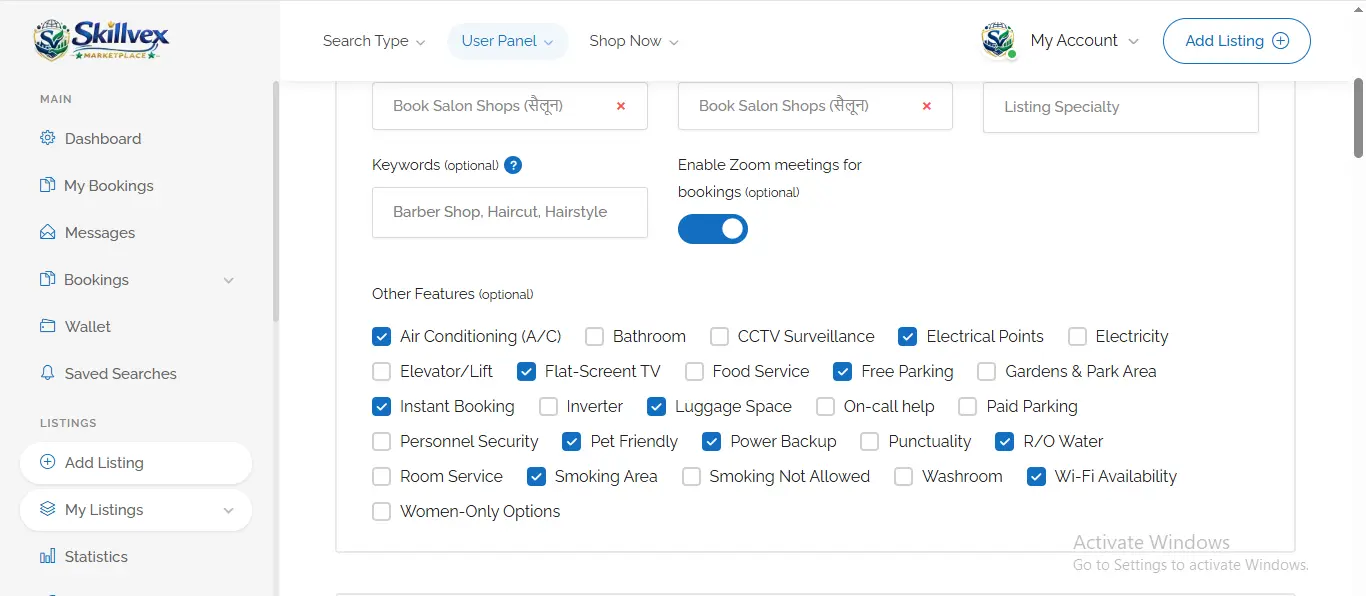
Business/Service Name: Enter the official name of your business or service (this is the name customers will use to search for you), which will serve as your business’s primary identity.
- Enter the name:- of your business or service in the ‘Service or Listing Title’ field.
- Upload the logo:- for your business or service; the maximum allowed file size is 15 MB.
- Select the Main Category or Sub-Category:- for your business or service. You must choose options that are an exact match for your business within these categories.
- Listing Specialty:- Download this file to view the available Listing Specialties. This file contains a list of specialties corresponding to the various categories.
- Keywords:- Here, select the specific terms or names under which you want your business or service to be searchable.
- Enable Zoom Meetings:- This option allows you to connect your Zoom account to manage your bookings. Once you enable this feature, you will find the option to link your Zoom account within the ‘My Profile’ tab. However, you must first create an account on the Zoom application.
- Other Features:- Select the specific features for your business or service that you wish to display on your business profile.
📍 Section 2 :- Location Information
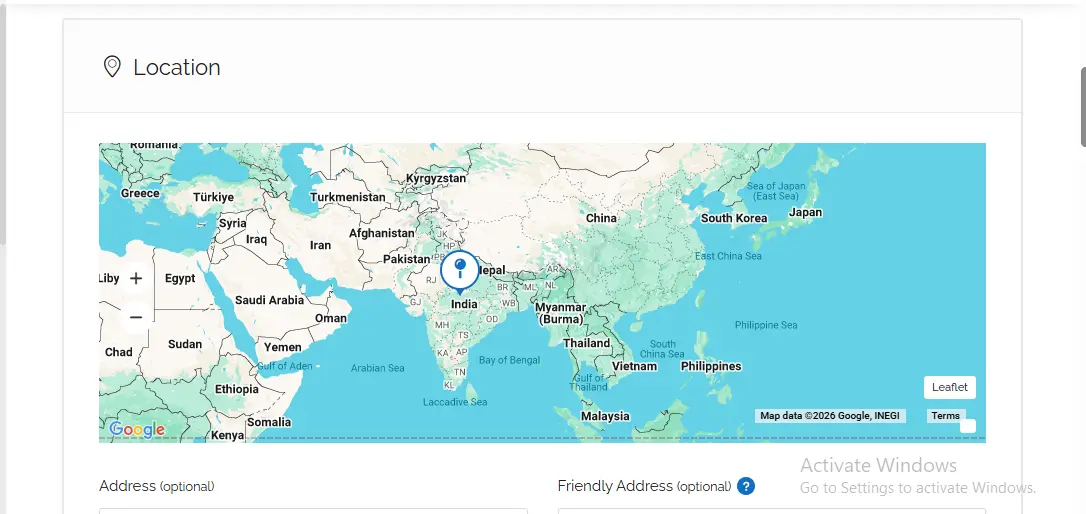
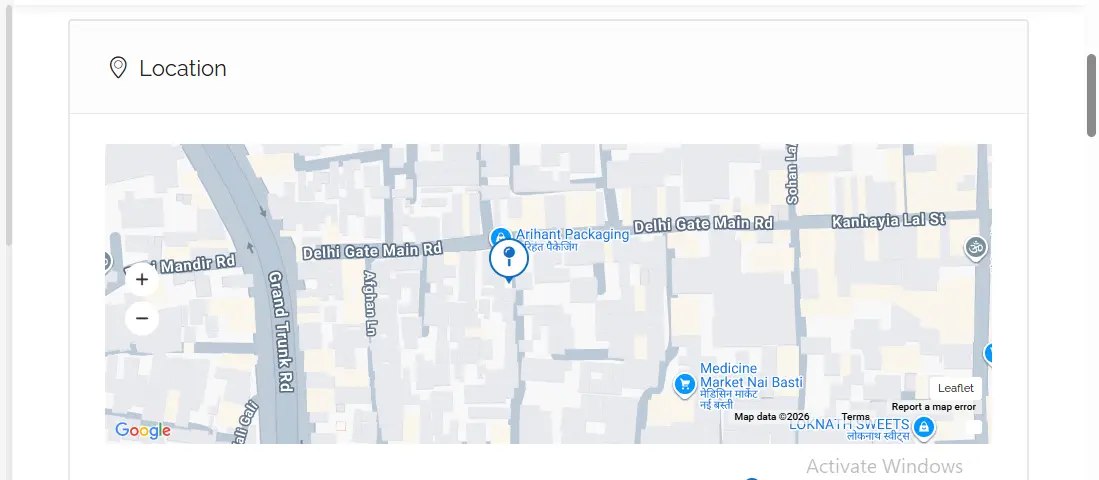
Here, you specify the actual location of your business or service. Entering the correct location allows customers to find you easily, and a pin also appears on the map.
- 📍 Map Pin-Point Feature map.
📍 What it is:- The map displayed before you will feature a red or blue pin (📍).
🧩 How to use:- If the pin is not positioned correctly, you can click on it and drag-and-drop it to your exact location. This ensures that customers can pinpoint your precise whereabouts.
🎯 Example:- Suppose your address is “Delhi Gate,” but the pin appears elsewhere; simply drag it to the exact spot corresponding to Delhi Gate.
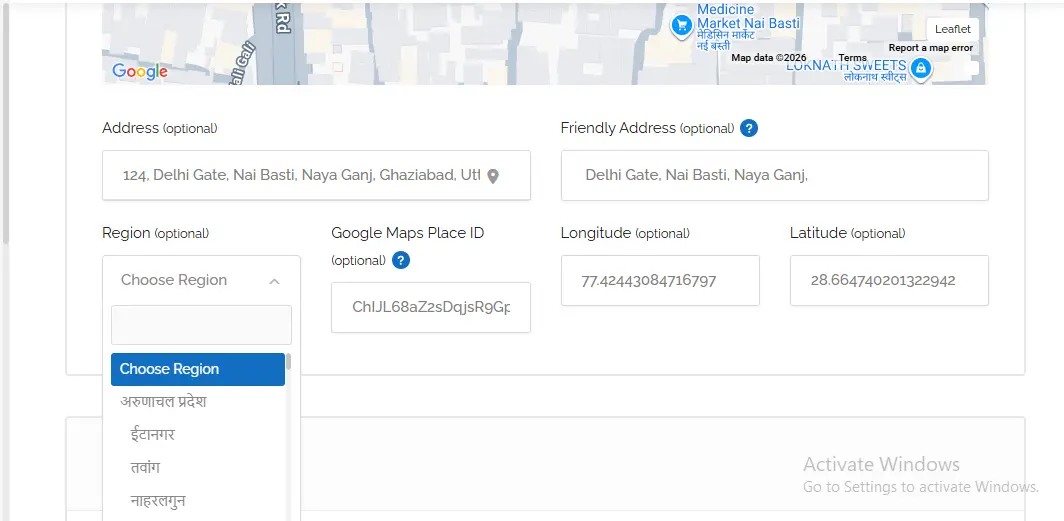
- 🏁 Address
📌 Meaning:- Here, you need to enter the complete address of your business.
🔧 How to Fill:- Just as you would write an address to send a letter—enter the Street, City, State, and Pin Code.
💡 Example:- Street Number 5, Rajendra Nagar, New Delhi – 110008
- ️🇳🇪 Friendly Address
🏠 Meaning:- This is a simple name or address that allows customers to easily identify you.
🔧 How to Fill:- If you have a well-known name or are located near a prominent landmark, enter that information. For example: “Opposite Big Bazaar,” “Old Bus Stand.”
💡 Example:- Behind Star Mall, Main Crossing
- ️🇳🇪 Region
🌏 Meaning:- Here, you can select the broader region (state/city) where your business is located.
🔧 How to fill:- Select your state or city from the dropdown menu. For example: “Maharashtra”, “Karnataka”.
💡 Example:- “Maharashtra”
- ️🗺️ Google Maps Place ID
🆔 Meaning:- This is a unique code (ID) that identifies your location on Google Maps.
🔧 How to Fill:- Filling this is mandatory. It is through this ID that Google Reviews will appear on your business/listing profile; if you wish, you can find your Place ID by searching for your location on Google Maps and then enter it here.
💡 Example:- ChIJL68aZ2sDqjsR9GpBzQxTpQE (This is just an example; the ID for your specific location will be different.)
- ️🗺️ Latitude & Longitude
🧭 Meaning:- These are the coordinates that pinpoint your exact location on a map.
🔧 How to Fill:- To enter the correct latitude and longitude, please use these links. Right-click on your location to copy these numbers. Then, enter them into the Latitude and Longitude fields.
💡 Example:- Latitude: 28.6139, Longitude: 77.2090
🖼️ Section 3 :- Gallery
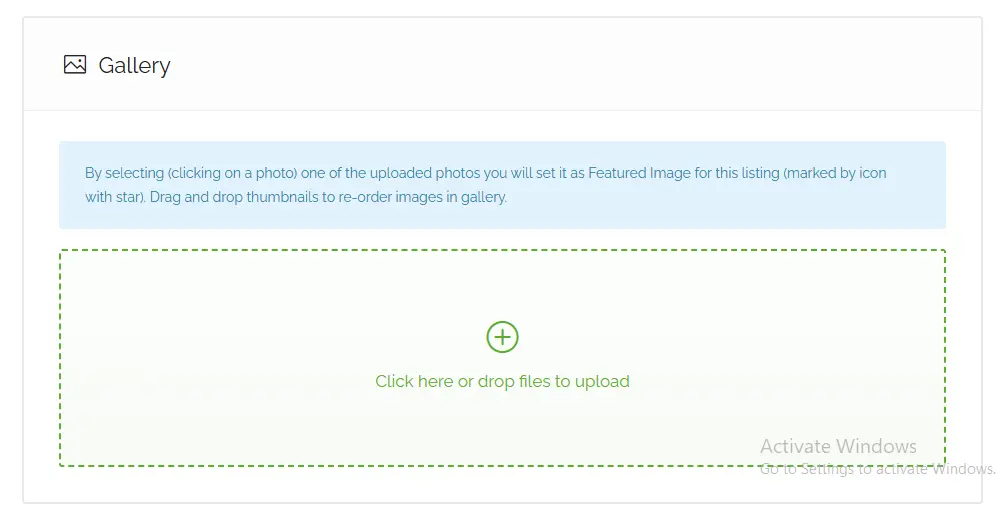
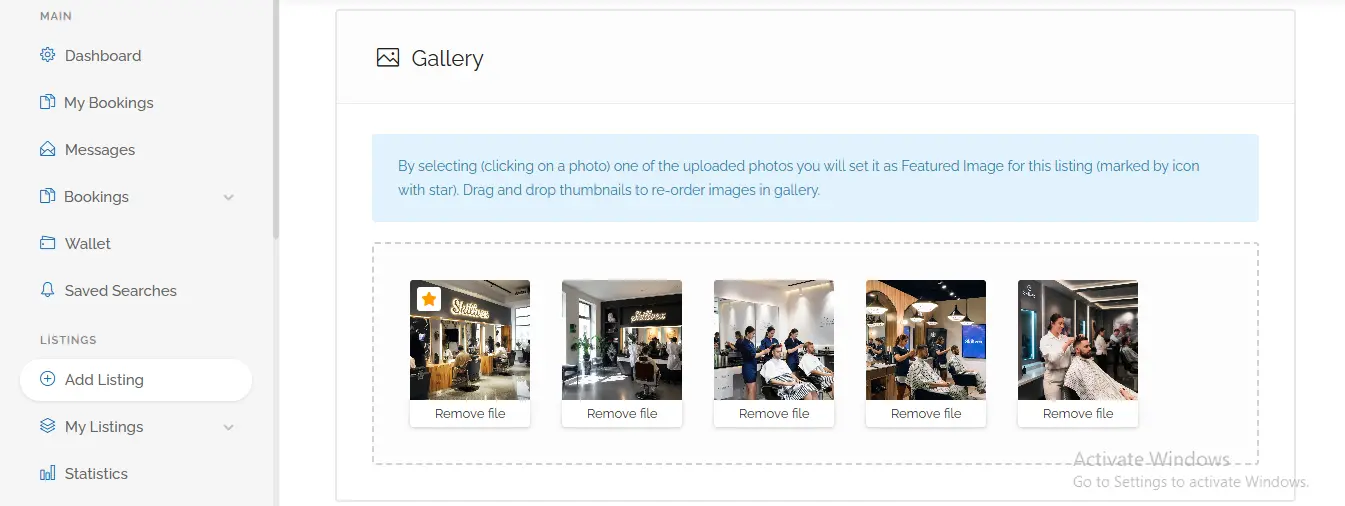
Here, you can upload photos related to your business or service—such as photos of restaurant dishes, hotel rooms, or vehicles.
- 🎞️ ️How to Upload Photos
📤 Method:- Click on the box, or drag and drop your photos here.
📸 Examples:- Upload photos of your hotel room, food dishes, or vehicle.
- 📷 How to Set a Featured Photo (Main Photo)
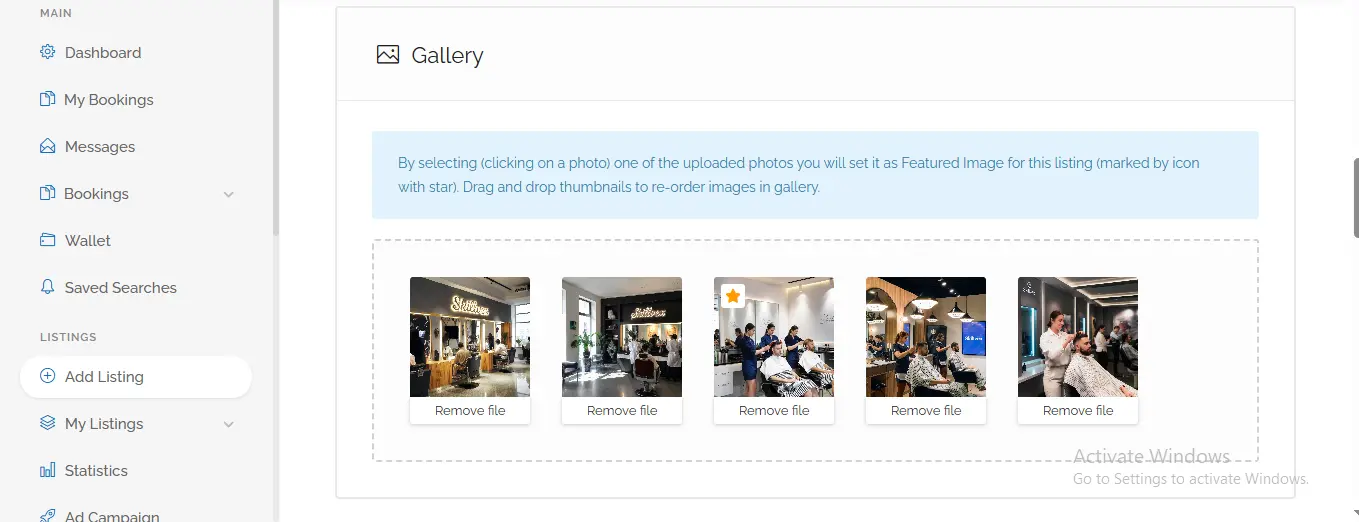
⭐ Meaning:- This is the photo that will appear first.
🔧 How to Set:- Click on a photo. It will be marked with a star (⭐) icon. This will become your main photo.
- 🖱️ How to Change the Order of Photos
🔄 Method:- Drag the photos to move them forward or backward.
🎯 Example:- If you want to display the second photo first, drag it to the first position.
📋 Section 4 :- Complete Guide to the Details Section
This section is the most important one. Here, you will provide comprehensive information about your business—such as what you do, how customers can contact you, and what makes your business unique.
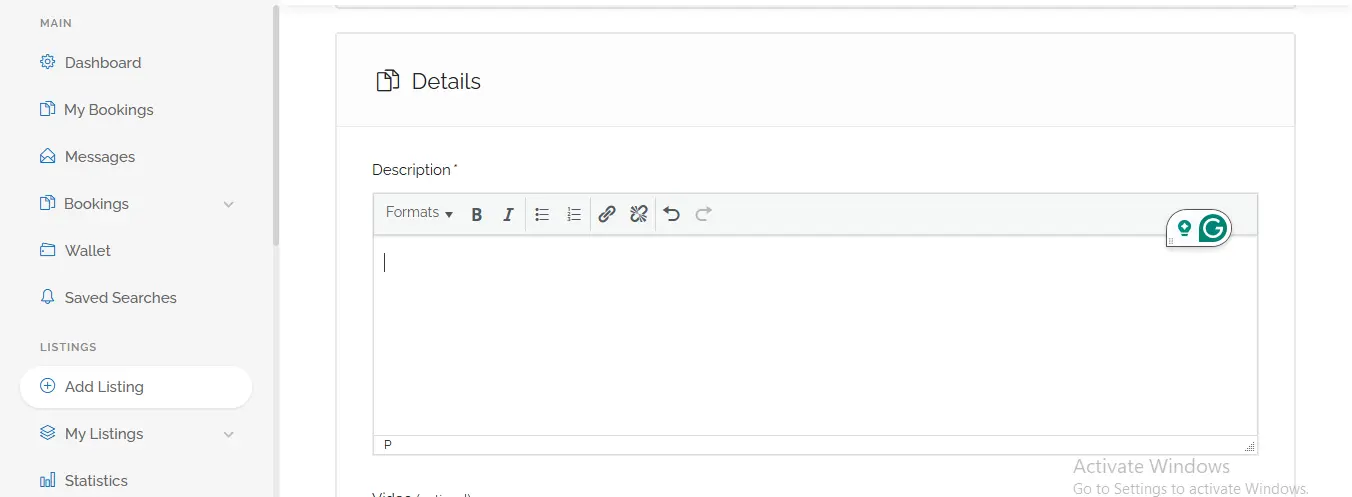
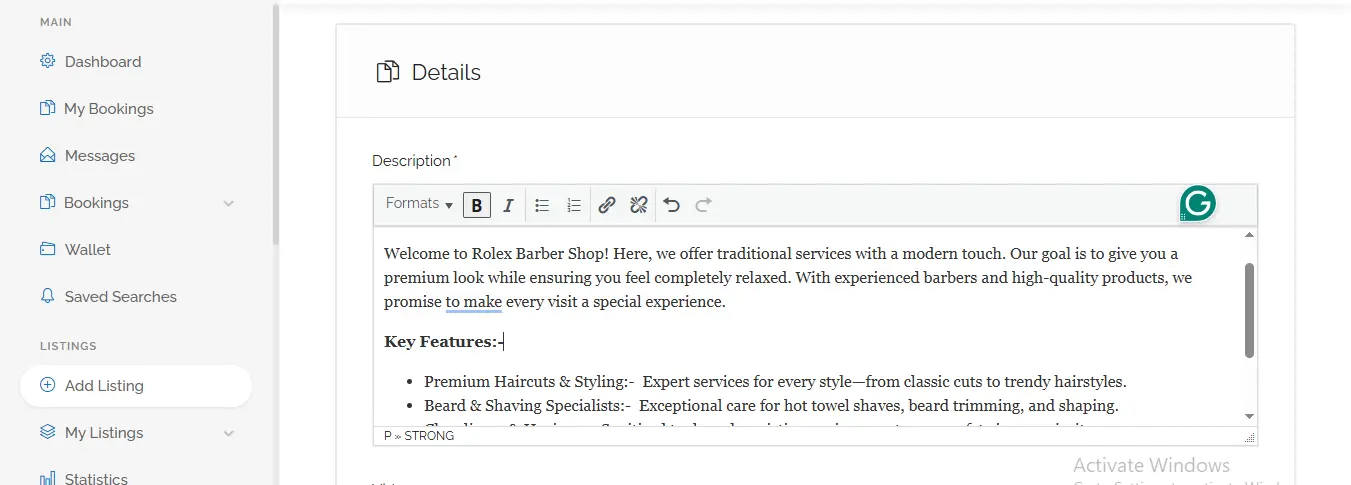
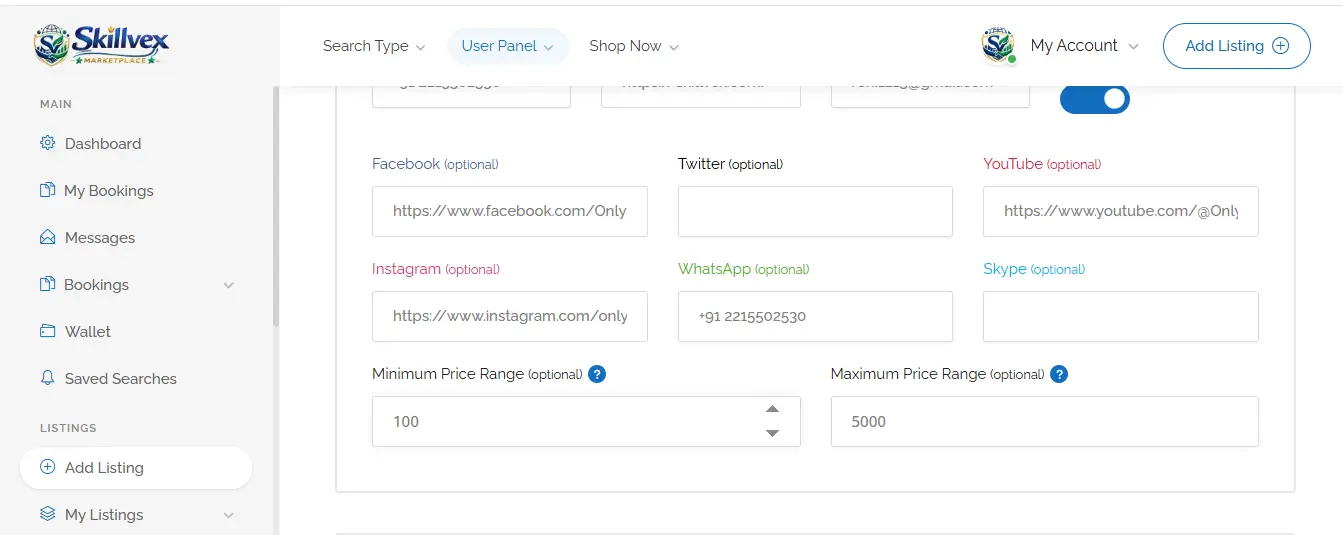
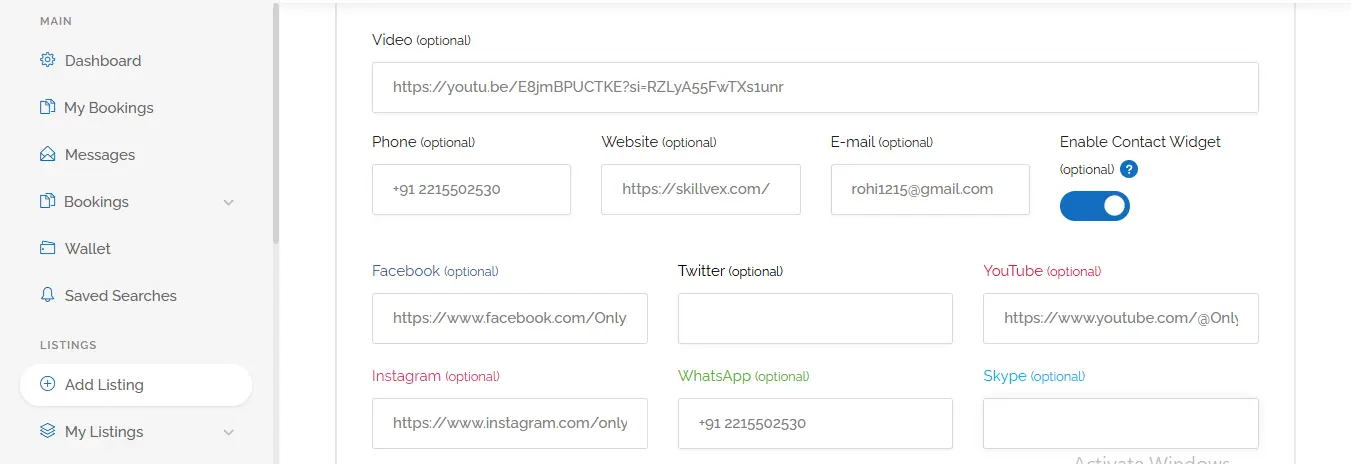
- 📃 ️Description – Required Field
✍️ Meaning:- This is where you need to write a detailed account of your business—essentially, how you wish to present it to your customers.
🔧 How to Fill:-
Use the **B** button to make text **Bold**.
Use the **I** button to make text *Italic*.
🔗 You can also include lists, links, or apply other formatting options if you wish.
💡 Example:- For a Hotel: “Our hotel is situated right by the seaside, offering breathtaking views. We provide air-conditioned rooms, complimentary Wi-Fi, and a swimming pool facility.” For taxi services: “With our 24-hour taxi service, you can travel both within and outside the city.”
- 🎞️ Video
📽️ Meaning:- If you have a promotional video for your business (e.g., on YouTube), enter the link here.
🔧 How to fill:- Paste the full URL (link) of the video here.
💡 Example: https://www.youtube.com/
- 👥 Contact Info
📞 Phone
🌐 Website –
🔧 How to fill: If you have your own website, enter the link here.
💡 Example: https://www.myskillvexstore.com
✅ Enable Contact Widget
🔧 Meaning:- Turning this on will display a contact button (Contact/Message) on your listing, allowing customers to easily send you messages.
🔧 How to fill:- Simply tick (✓) the box next to it.
- 🔗 Social Media Links
📘 Facebook:- https://facebook.com/YourPage
🐦 Twitter:- https://twitter.com/YourProfile
🎬 YouTube:- https://youtube.com/YourChannel
📷 Instagram:- https://instagram.com/YourID
💬 WhatsApp:- Enter your WhatsApp number, including the country code. +919876543210
💻 Skype:- Enter your Skype ID. live:MySkypeID
- 💰 Price Range
💵 Minimum Price:-
🔧 Meaning:- The starting price of the most affordable service or product offered by your business.
💡 Example: For a hotel, enter 500 as the rate for the cheapest room.
💴 Maximum Price:-
🔧 Meaning:- The price of the most expensive service or product offered by your business.
💡 Example:- For a hotel, enter 5000 as the rate for the most expensive suite.
💰 Section 3 :- **Booking Prices and Settings:- Comprehensive Guide**
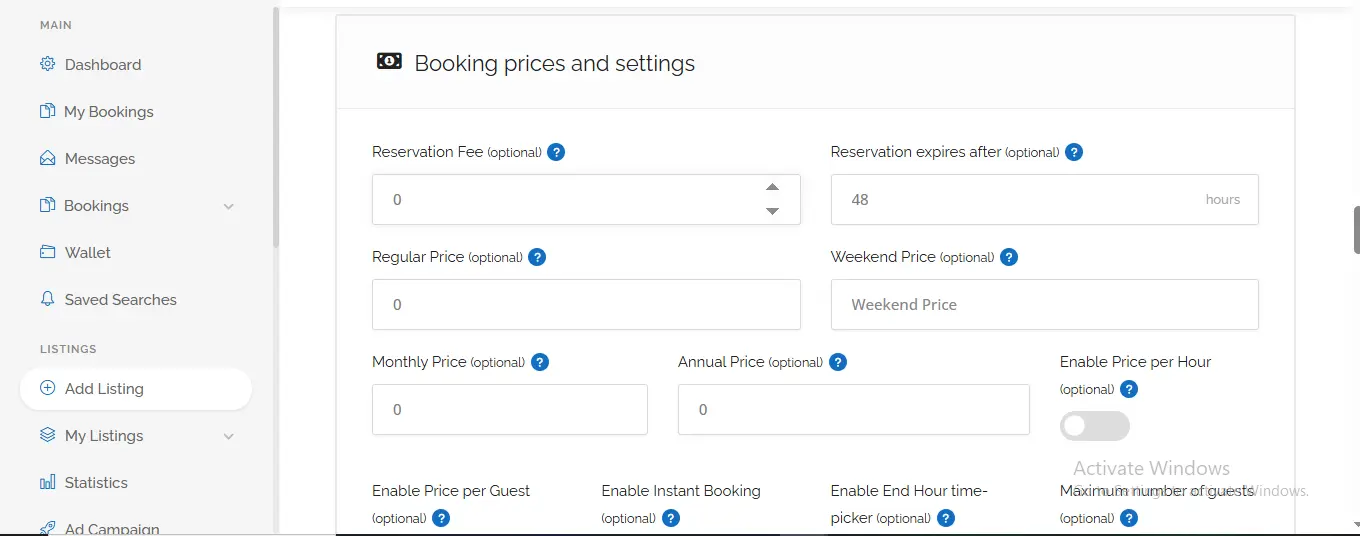
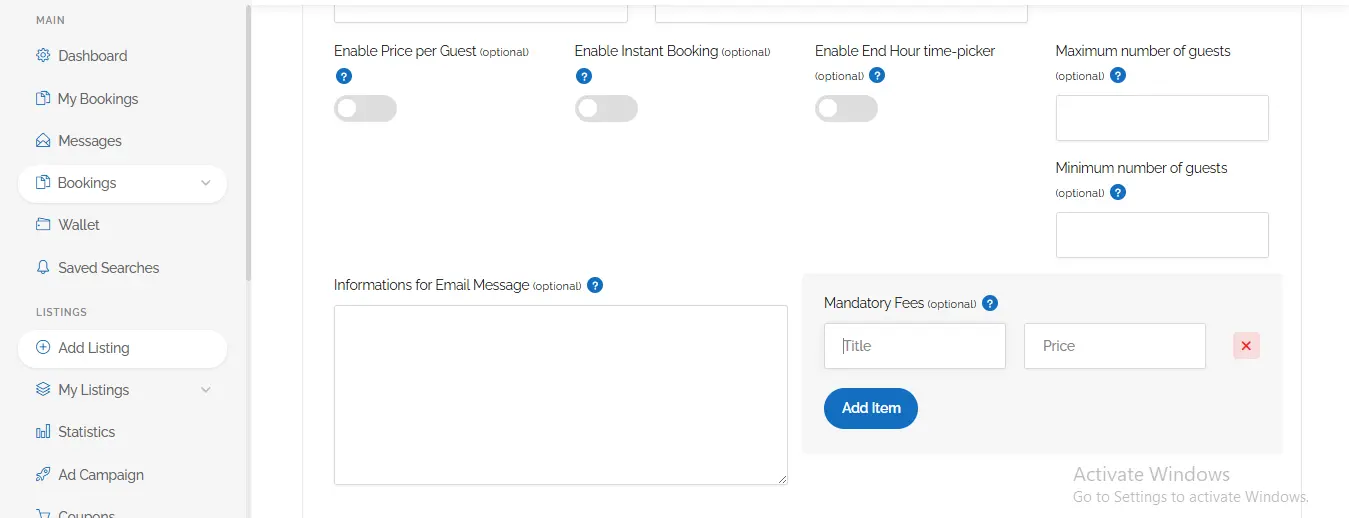
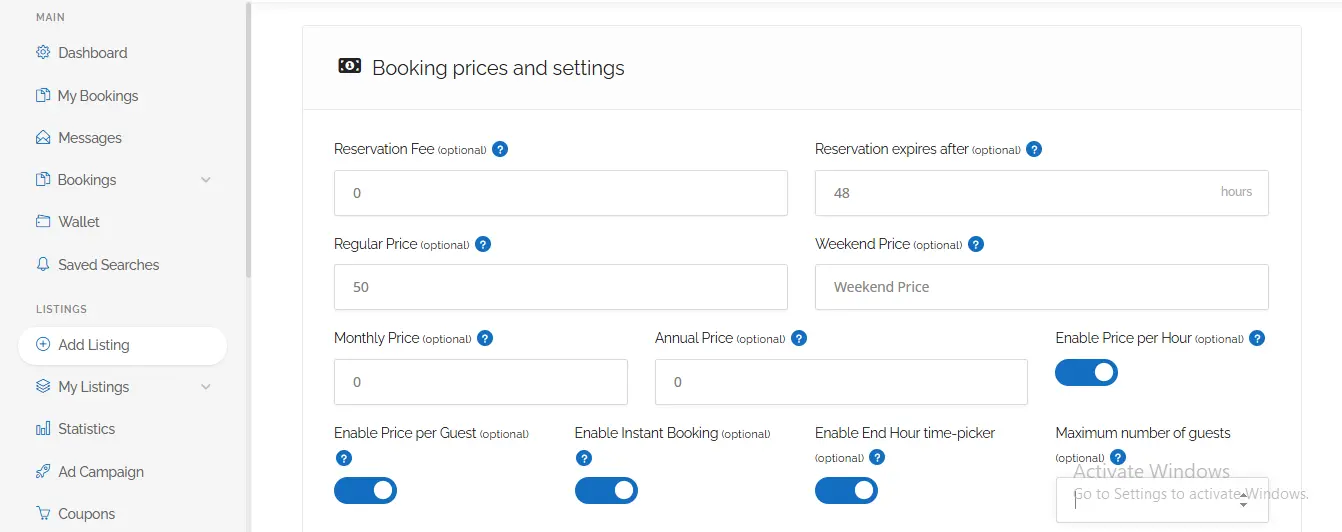
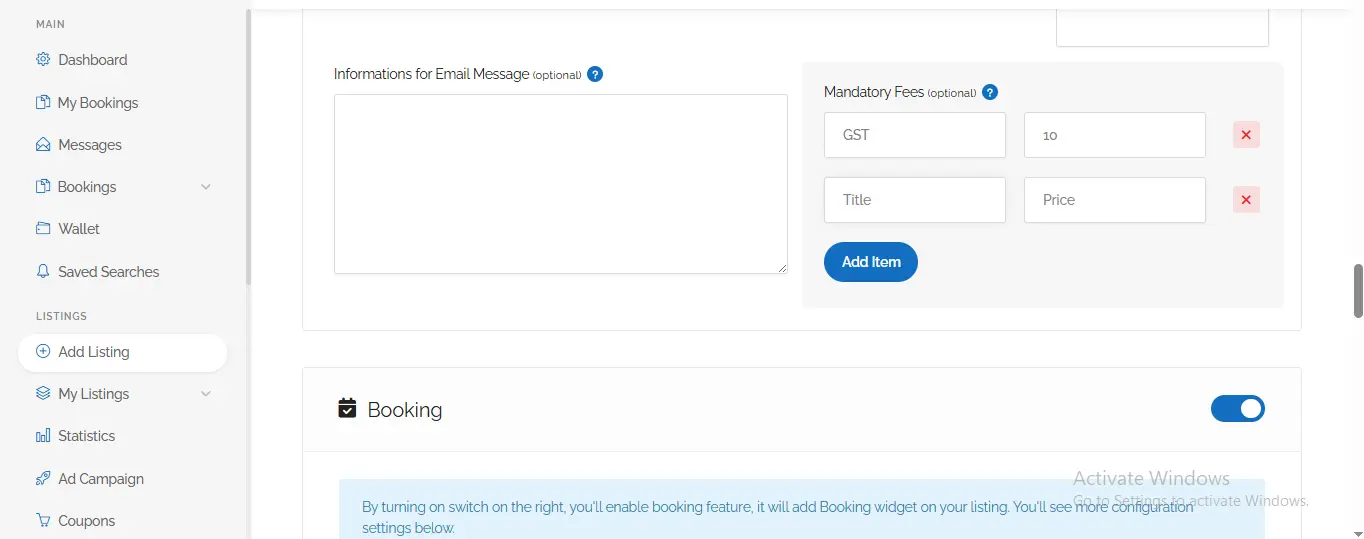
This section is of utmost importance, as it is where you determine the pricing charged to customers and establish the rules governing bookings. Please complete this section with care.
- 1️⃣ **General Prices**
💰 Reservation Fee –
🔧 Meaning:- This is a fee charged solely for the act of making a booking. It is charged *in addition* to the standard price of the room or service.
💡 Example:- If you wish to charge an additional ₹100 for booking a hotel room, enter “100”. If you do not wish to charge this fee, leave it as “0”.
💰 Regular Price –
🔧 Meaning:- The standard price for your service or product.
🔧 How to Fill:- Enter the standard price.
💡 Example:- If the nightly rate for a room is ₹2,000, enter “2000” here.
💰 Monthly Price –
🔧 Meaning:- The amount charged if a customer wishes to book for an entire month (e.g., for a car rental or an apartment).
🔧 How to Fill:- Enter the monthly rate.
💡 Example:- If you wish to rent out a car for a full month for ₹15,000, enter “15000”.
💰 Annual Price –
🔧 Meaning:- The price applicable for a booking covering a full year.
💡 Example:- If a gym membership costs ₹5,000 per year, enter “5000”.
- 2️⃣ Time & Special Prices
⏰ Reservation:- Reservation Expiration Period (Reservation expires after)
🔧 Meaning:- The duration (in hours) allowed for a customer to complete the payment after making a booking. If payment is not received within this timeframe, the booking will be automatically cancelled.
🔧 How to Fill:- Enter the number of hours.
💡 Example:- Entering “48” means that if payment is not made within 48 hours (2 days), the booking will expire.
📅 Weekend Price:-
🔧 Meaning:- If you wish to charge a different price (typically higher) on Saturdays and Sundays, enter that price here.
💡 Example:- If you want to set the room rate to ₹2500 on weekends, enter 2500 here.
⏱️ Enable Price per Hour
🔧 Meaning:- If you wish to charge based on an hourly rate (e.g., for banquet halls or party plots), switch this option on.
🔧 How to fill:- Check (✓) the box provided next to it.
👥 Enable Price per Guest –
🔧 Meaning:- If you wish to charge a fee per guest (e.g., for buffet dinners or tour packages), switch this option on.
🔧 How to fill:- Check the box.
⚡ Enable Instant Booking:-
🔧 Meaning:- Enabling this allows customers to make bookings immediately without requiring your prior approval. They will not have to wait for office hours.
🔧 How to fill:- Check the box.
⏲️ Enable End Hour Time-picker:-
🔧 Meaning:- This allows customers to select the specific time when their booking concludes (e.g., renting a car at 10:00 AM and returning it at 5:00 PM).
🔧 How to fill:- Check the box.
🚶 Maximum Number of Guests:-
🔧 Meaning:- What is the maximum number of people that can occupy your space simultaneously? (e.g., a maximum of 4 people in a hotel room).
🔧 How to fill:- Enter the number.
💡 Example:- If a maximum of 4 guests are permitted, enter 4.
💵 Mandatory Fees:-
🔧 Meaning:- Here, you can add additional fees that apply to every booking, such as service charges, GST, or cleaning fees.
🔧 How to Fill:-
Title:- Enter the name of the fee (e.g., “Service Tax,” “Cleaning Charge”).
Price:- Enter the price in Rupees.
Add Item:- Press this button to add additional fees.
💡 Example:-
Title:- GST
Price:- 200
🖱️ How to Change the Order of Photos
🔄 Method:- Drag the photos to move them forward or backward.
🎯 Example:- If you want to display the second photo first, drag it to the first position.
🗓️ Section 3:- Availability Section – How to Set Time Slots
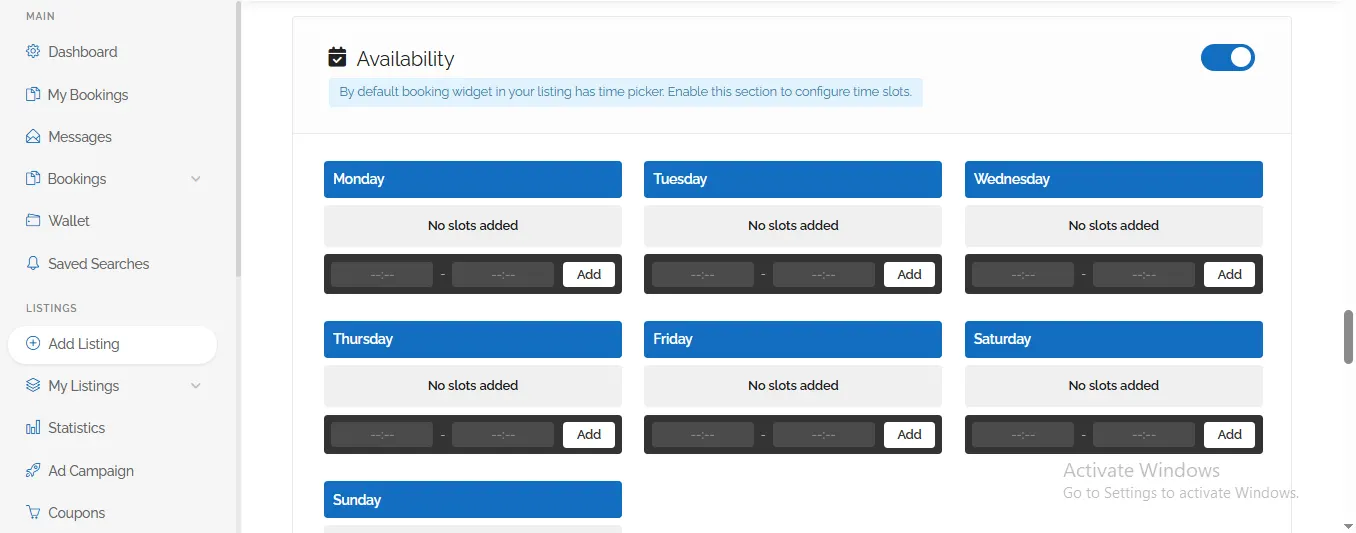
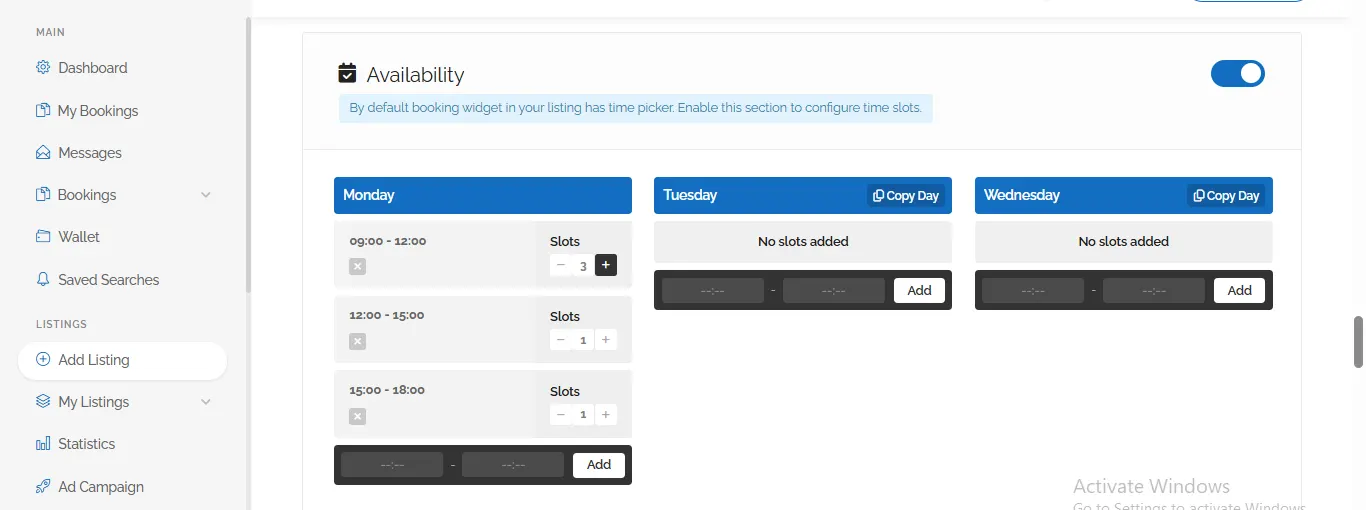
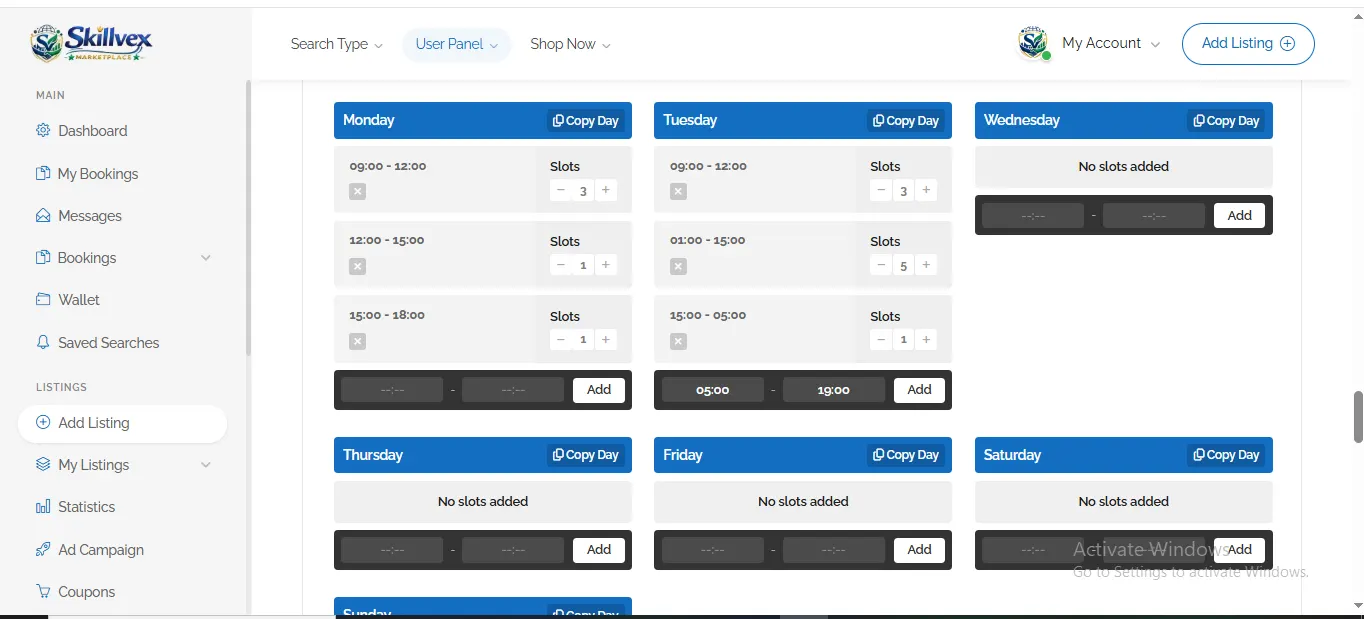
- This section is designed for those who offer their services based on specific time slots.
- Examples include: Doctor’s appointments, beauty parlors, car rentals, banquet halls, or any service where the customer needs to select a specific day and time.
- Here, you can specify exactly which days of the week your service is available, and during what hours (from start time to end time).
⏰ Why is this section important?
Unless you enter specific time slots here, customers will only be able to select a general date and time.
As soon as you add slots here, customers will be presented with pre-defined time blocks—such as 10:00 AM–12:00 PM, 2:00 PM–4:00 PM, etc.
🗓️ Set Separate Timings for Each Day
Below, you will find individual buttons for each day of the week, from Monday to Sunday.
Let’s take one day as an example:- Monday.
Beneath “Monday,” you will see the text: “No slots added.”
This indicates that you have not yet scheduled any specific timings for Monday.
A blue [+ Add] button will appear.
Click on the ➕ Add button.
🔧 What happens after clicking the Add button?
As soon as you click “Add,” a new window or form will open where you will need to fill in the following details:-
1️⃣ Start Time:-
At what time will you begin providing your service?
💡 Example: 9:00 AM
2️⃣ End Time:-
Until what time will you provide your service?
💡 Example: 5:00 PM
➕ Add Another Slot:-
If you take breaks during the day (for instance, a lunch break from 1:00 PM to 2:00 PM), you can add a second time slot.
💡 Example:-
Slot 1: 9:00 AM – 1:00 PM
Slot 2: 2:00 PM – 5:00 PM
🗑️ Remove Slot:-
If you have entered a slot incorrectly, you will find a trash can (🗑️) icon located right next to it. You can remove a slot by tapping and holding it.
🗓️ Repeat this process for all days:-
Tuesday – Tap ‘Add’ → Enter time
Wednesday – Tap ‘Add’ → Enter time
Thursday, Friday, Saturday, Sunday – Do the same for each day.
👉 If you wish to remain closed (Off) on a particular day, do not add any slots for that day.
For example, if the shop is closed on Sunday, leave that section blank.
✅ Example – Slots for a Doctor
Monday to Friday:-
10:00 AM – 1:00 PM
4:00 PM – 7:00 PM
Saturday:-
10:00 AM – 2:00 PM (Only one slot)
Sunday:-
No slots (Holiday)
💰 Section 3 :- Pricing & Bookable Services Section
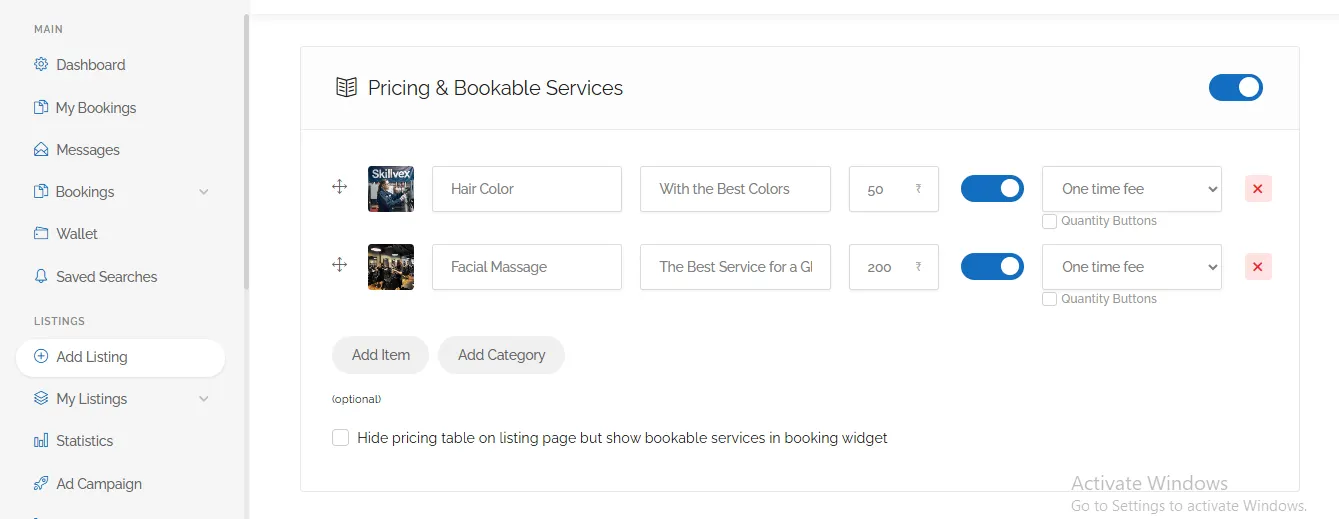
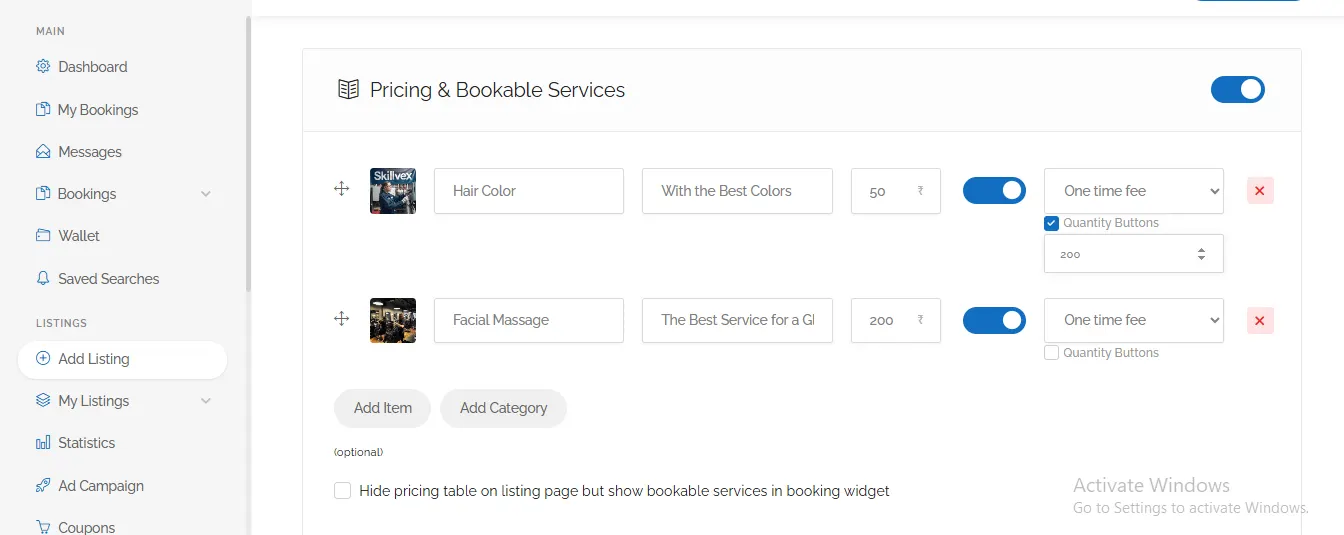
- This section is crucial for those offering a variety of services or packages.
- For instance: different treatments at a salon, various room types at a hotel, different vehicles for car rentals, or distinct menu items at a restaurant.
- Here, you can create a list of all the items available for booking and their respective prices.
(✓) Toggle this option “On” to make the service available for booking.
Enter the Title, Description, and Price. ✍️
💡 Examples:-
🧖 For Salons:- Title – Facial, Description – Facial treatment using premium cream products, Price – ₹200.
🏥 For Hotels:- Title – Deluxe Room, Description – One-night rental for a Deluxe Room, Price – ₹1000.
🚗 For Car Rentals:- Title – Swift Dzire, Description – Self-drive car rental for 3 hours (Air-conditioned), Price – ₹1200.
🍽️ For the Food & Drinks Category:- Title – Kadai Paneer (Full Plate), Description – Piping hot, freshly prepared Kadai Paneer—a hearty meal for two people, Price – ₹200.
Select an option according to your specific needs; otherwise, leave the “One-time fee” box checked. ✅
Quantity Buttons:- Use this section to specify the quantity limits for your service or item. This determines the maximum number of times a user can request or book a single item, allowing them to book or order in quantities greater than one.
Add a new service by clicking [Add Item]. ➕
Optionally, you can hide this listing from the main page by checking the box provided below. 🙈
📅 Section 3 :- Availability Calendar – How to Manage Dates
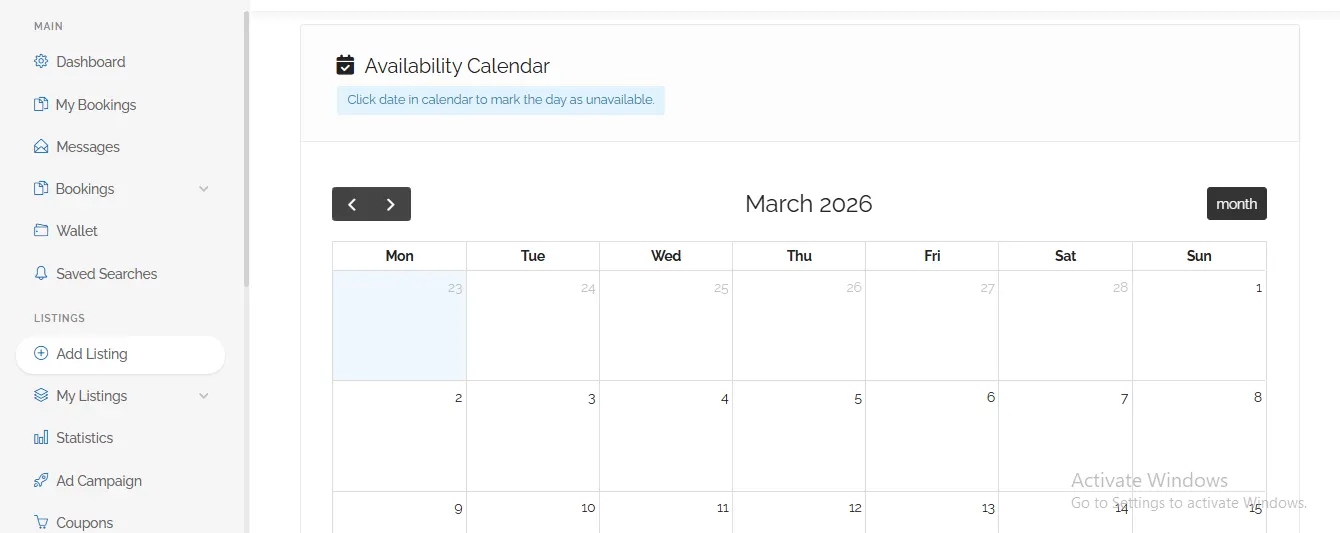
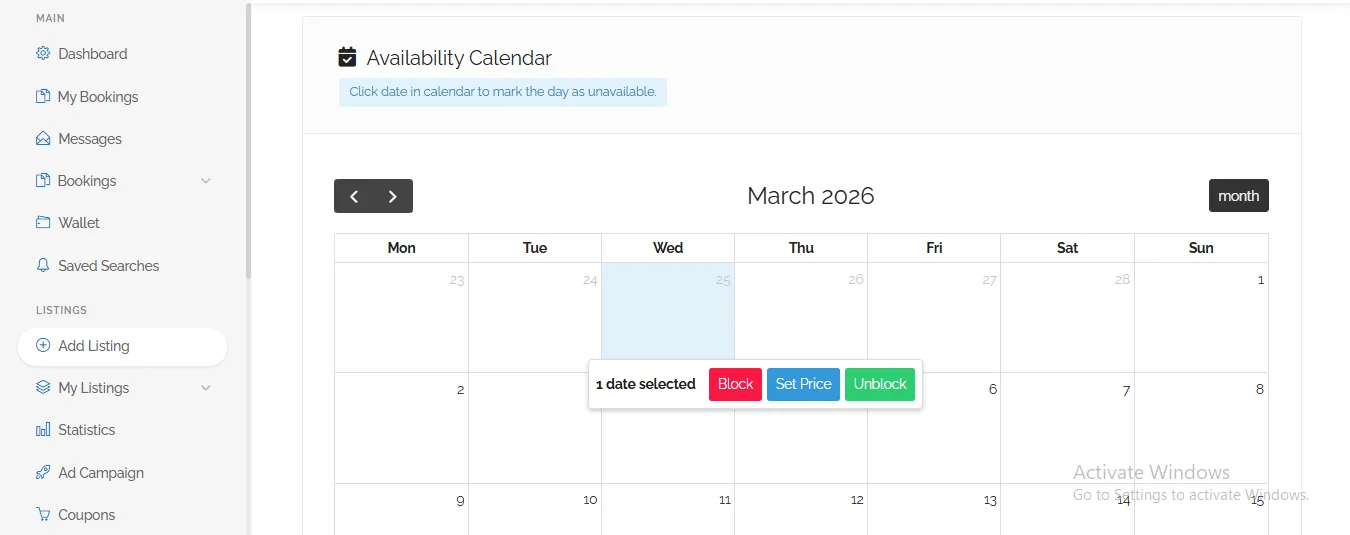
This section allows you to specify, on a day-by-day basis, whether your service is available or not.
This differs from the previous “Availability” section—where you set standard time slots for each day of the week.
Here, you can mark a specific date as unavailable for bookings or assign a special price.
📌 First, Understand: How Does It Work?
- At the very top, you will see the following instruction:
- (Click on a date in the calendar to block that specific day from bookings.)
- This calendar displays every day of the current month.
- You can select any date simply by clicking on it.
- Once you have selected a date, you can utilize the buttons provided below (Block, Set Price, Unblock).
🗓️ How to Read the Calendar?
- The screenshot currently displays the calendar for March 2026.
- Mon, Tue, Wed… – These represent the days of the week.
- 23, 24, 25… – These represent the dates.
- March 1st appears immediately after February 28th—this follows the standard calendar format.
- In the second image shown below, dates ranging from March 9th to April 5th are visible.
- You can view other months by clicking the navigation arrows (← →).
🖱️ How to Select Dates
- Click on a single date → It will be highlighted in blue.
A notification will appear at the top stating: “1 date selected.”
If you wish to select multiple dates:
Hold down the Ctrl (or Command) key while clicking on the desired dates. Alternatively, click on a starting date and drag your cursor across to the ending date.
🔘 Now, Let’s Understand the Buttons Below
As soon as you select one or more dates, the three buttons located at the bottom will become active:
🚫 Block
🔧 Meaning:- This marks the selected date(s) as unavailable for bookings. No customers will be able to make a reservation for that specific day.
💡 When to use:-
Hotel:- If all rooms are already booked for March 15th, or if the hotel is closed.
Parlor:- If January 26th is a holiday.
Car Rental:- If the vehicle has gone in for maintenance on that specific day.
How to do it:- Select a date → Press the Block button → The date will appear in red (🔴) or with a strikethrough.
💰 Set Price
🔧 What it means:- Set a specific price for a selected date—either higher or lower than the standard rate.
💡 When to use:-
Hotel:- To increase rates on December 25th (Christmas).
Parlor:- To offer a special deal on March 8th (Women’s Day).
Banquet Hall:- To increase rates during the wedding season.
How to do it: Select a date → Press Set Price → A box will open where you can enter the new price.
✅ Unblock
🔧 What it means:- To reopen (make available) a date that you had previously blocked.
💡 When to use:-
You originally planned to remain closed on May 10th, but now wish to open.
How to do it: Select that date → Press Unblock → The red marker will disappear, and the date will appear as normal.
🧮 At the bottom – Information on selected dates
“1 date selected” – This indicates how many dates you have currently selected. If you have selected multiple dates, this number will change (e.g., “5 dates selected”).
🕒 Section 3 :- Opening Hours – Set Your Business Timings
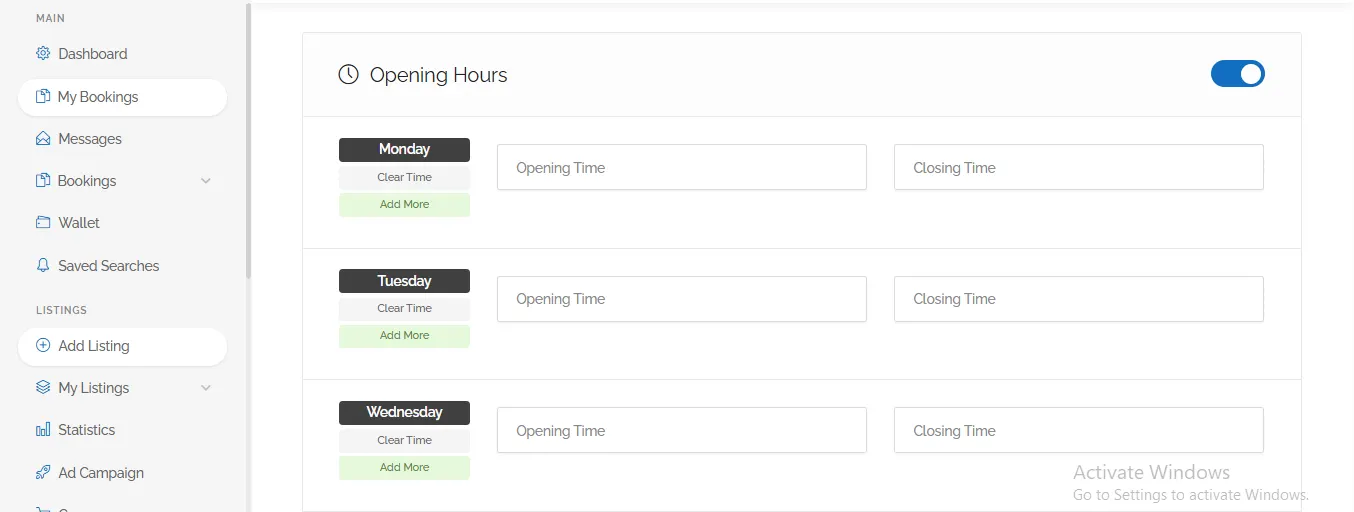
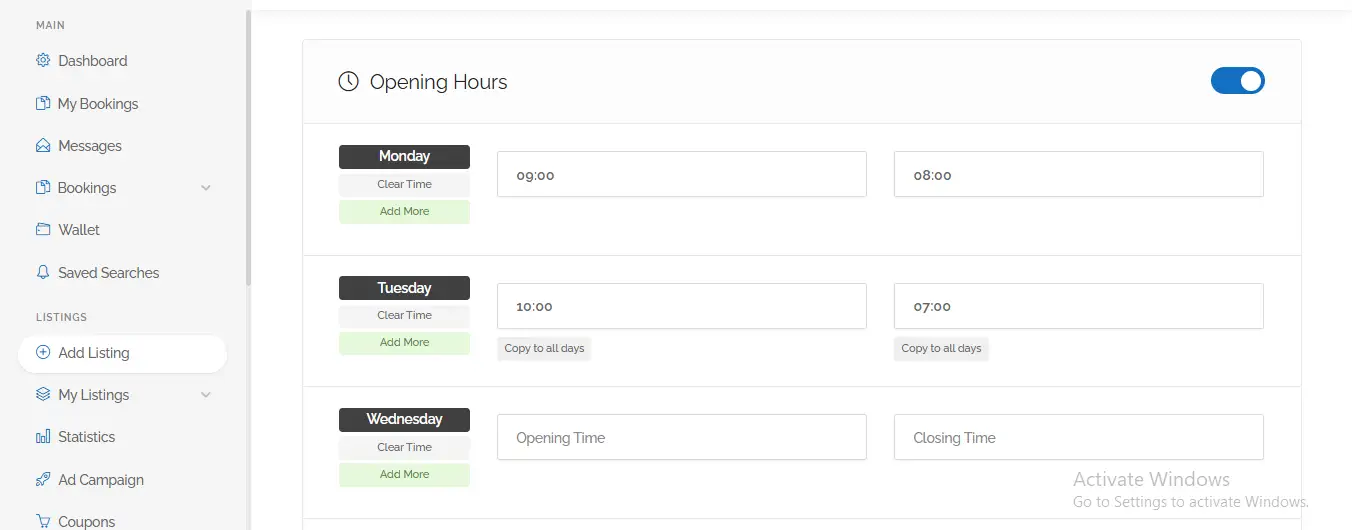
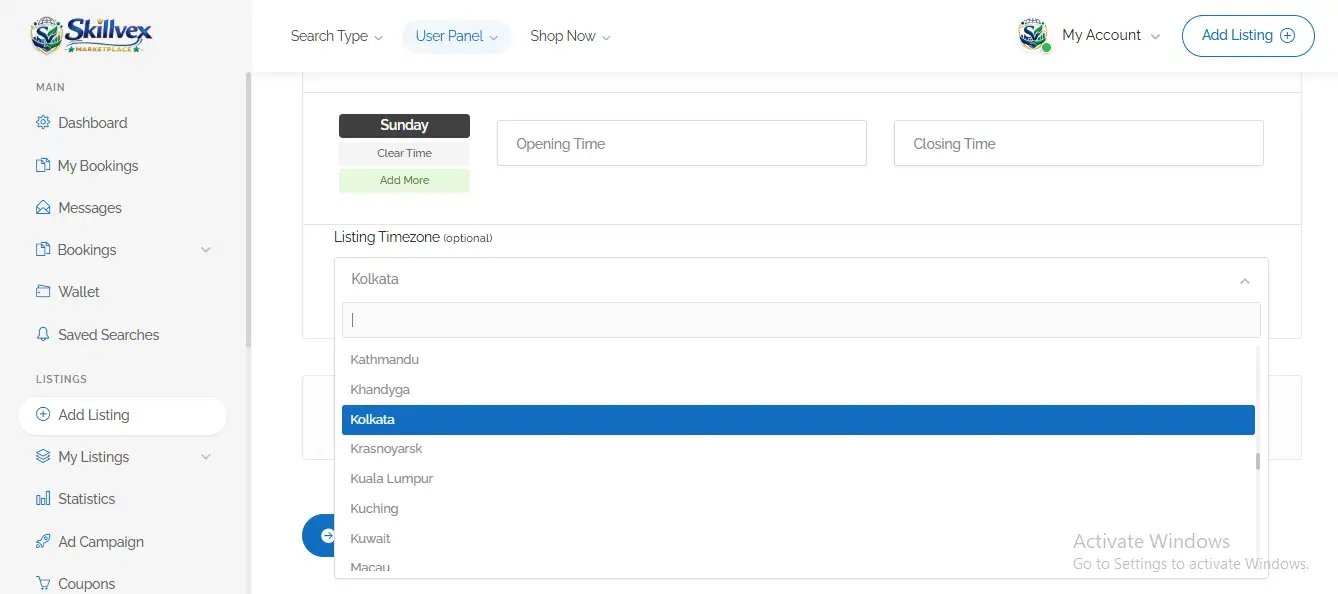
This section is crucial. Here, you specify exactly when your business opens and closes on each day of the week.
💡 Examples:- The shop opens at 10:00 AM and closes at 8:00 PM.
Opening Time – What time will you open? ⏰
💡 Examples:- 9:00 AM
Closing Time – What time will you close? 🔒
💡 Examples:- 8:00 PM
Clear Time – To remove the time 🧹
💡 Examples:-
Add More – To add a break or another slot ➕
Listing Timezone – Always select “Kolkata” (for India) 🇮🇳
❓ Section 3 :- Question – The question asked by customers.
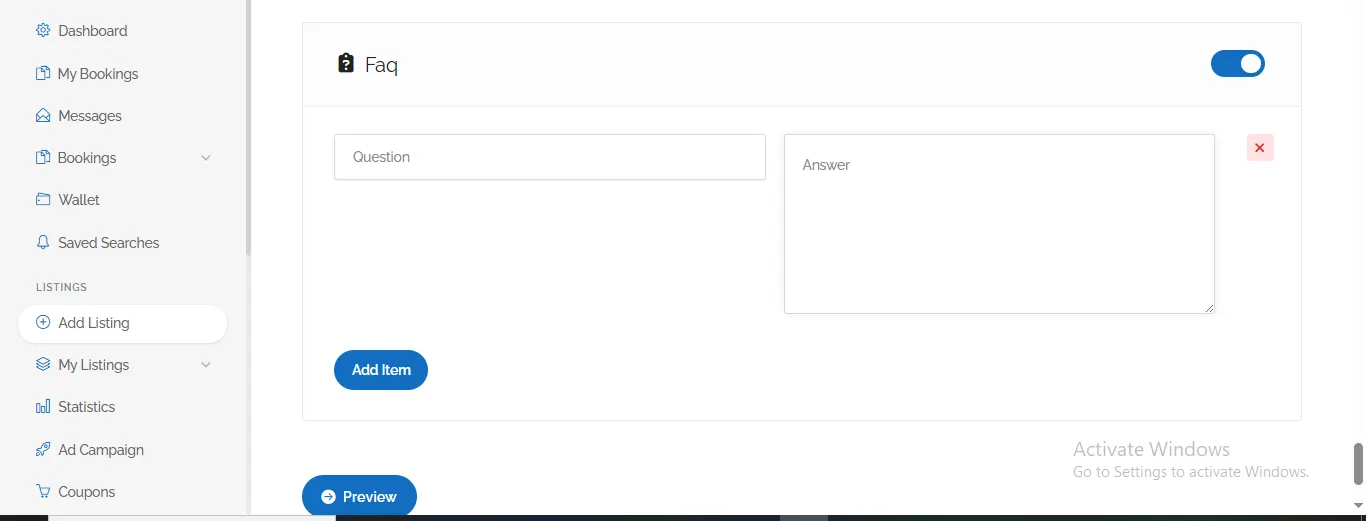
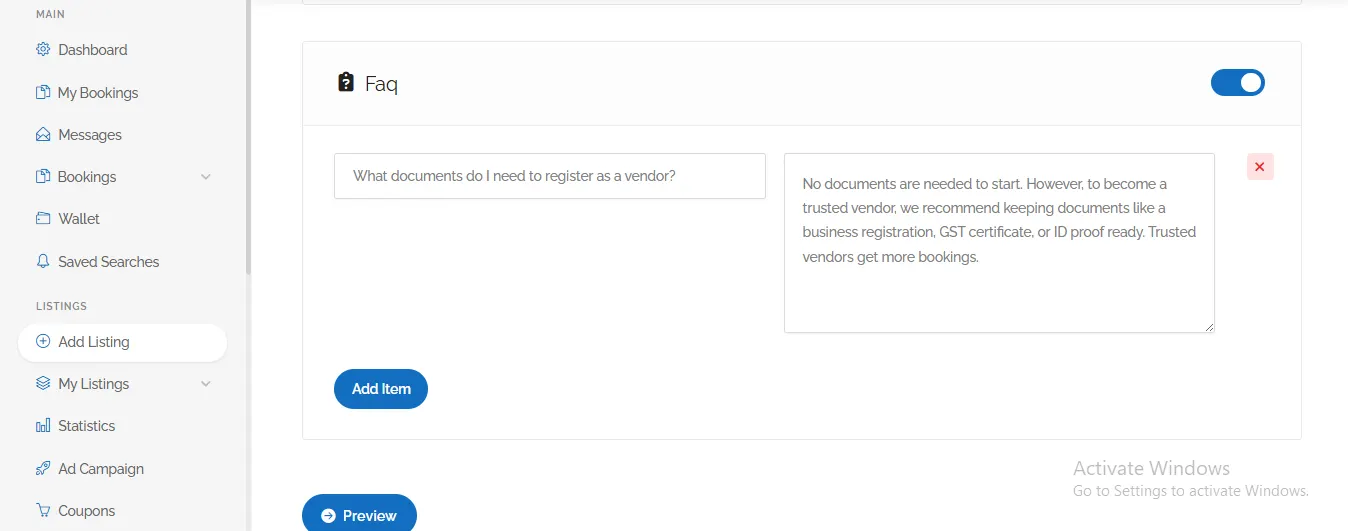
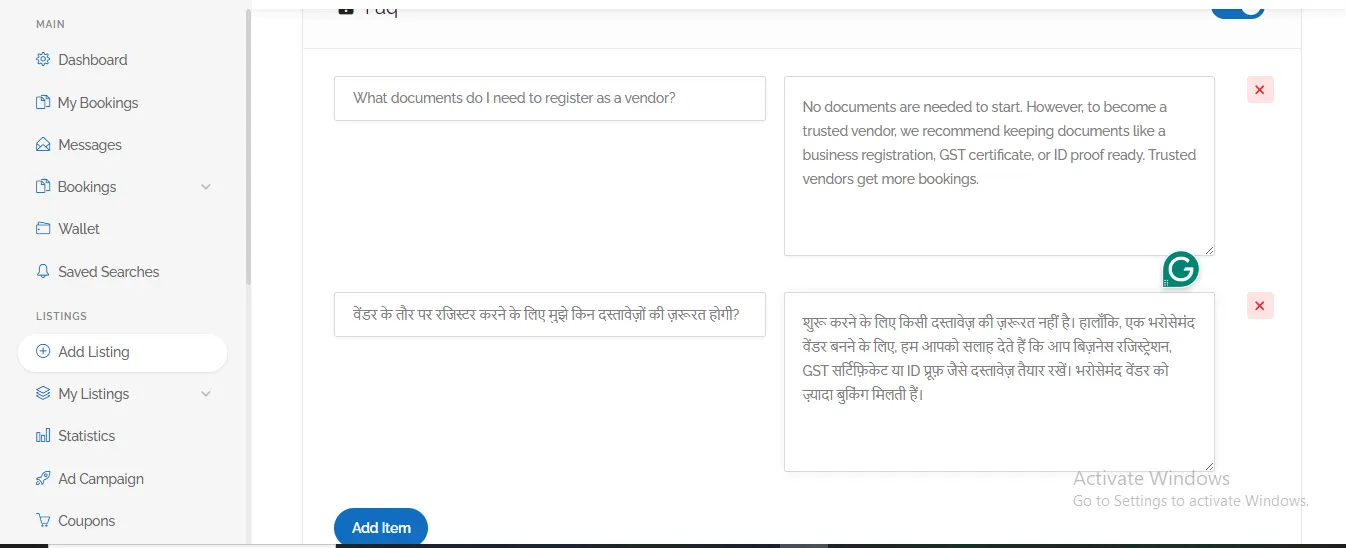
💡 Example:-
- “Do you offer home delivery?”
- “Can I make an online payment?”
- “Will I get a refund if I cancel a reservation?”
💬 Answer – A clear and concise response to that question.
- “Yes, we offer free home delivery within the city limits. A delivery fee of ₹30 applies to orders under ₹500. This fee may vary.
- “Yes, you can make payments using credit cards, debit cards, UPI (Google Pay, PhonePe), and Net Banking.”
- “If you cancel at least 24 hours in advance, you will receive a full refund. After that, a 50% cancellation fee will apply.”
Add Item – To add a new question-and-answer pair. ➕
You can add multiple FAQs—as many as you like. 🔢
🎟️ Section 3 :- Select Coupon – Choose an offer from the dropdown menu.
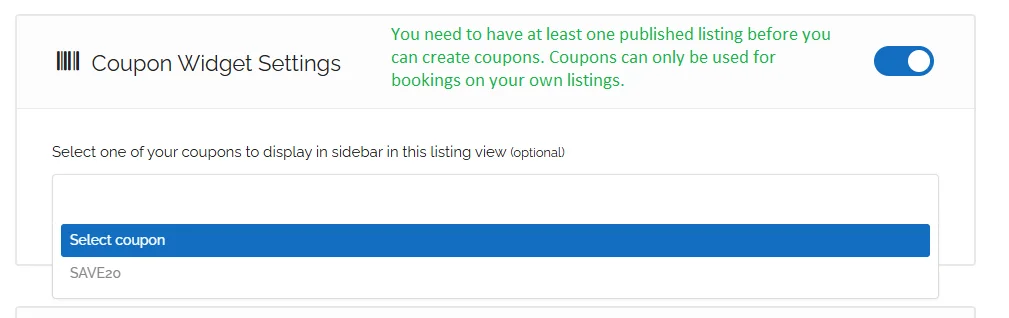
⚪ This section is optional – you may fill it out or leave it blank.
👁️ Once selected, the coupon will appear in the sidebar of your listing.
✅ This allows customers to discover your offer and apply the coupon at the time of booking.
✅ Section 3 :- Review and Publish
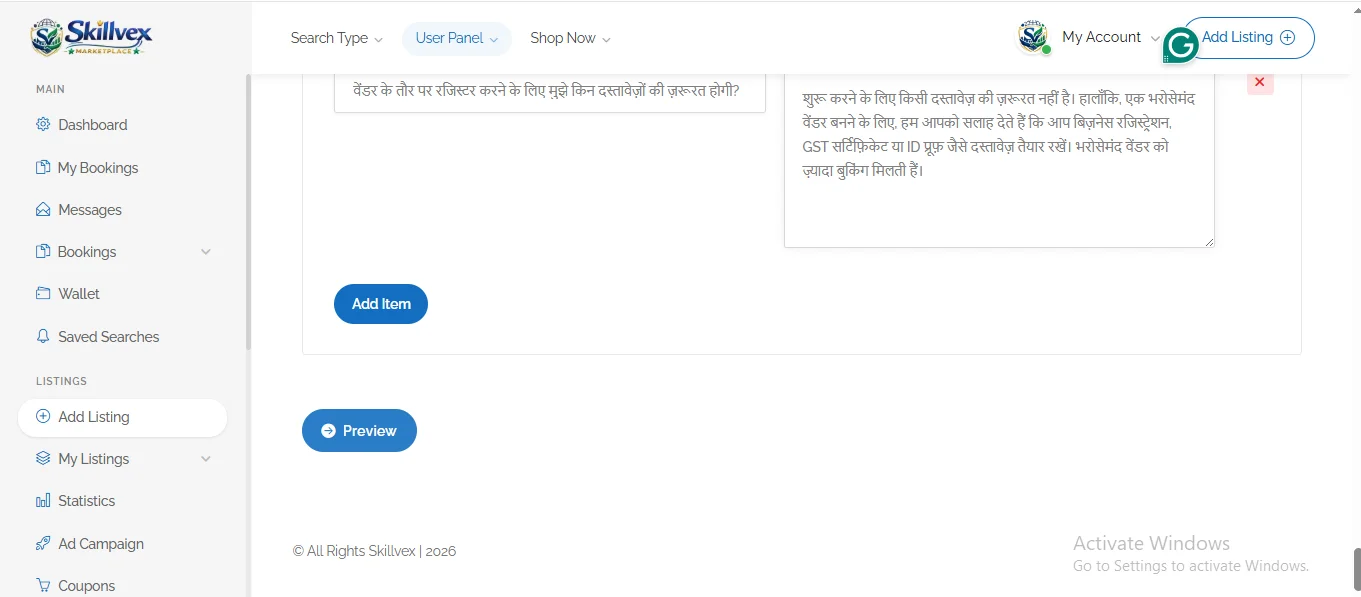
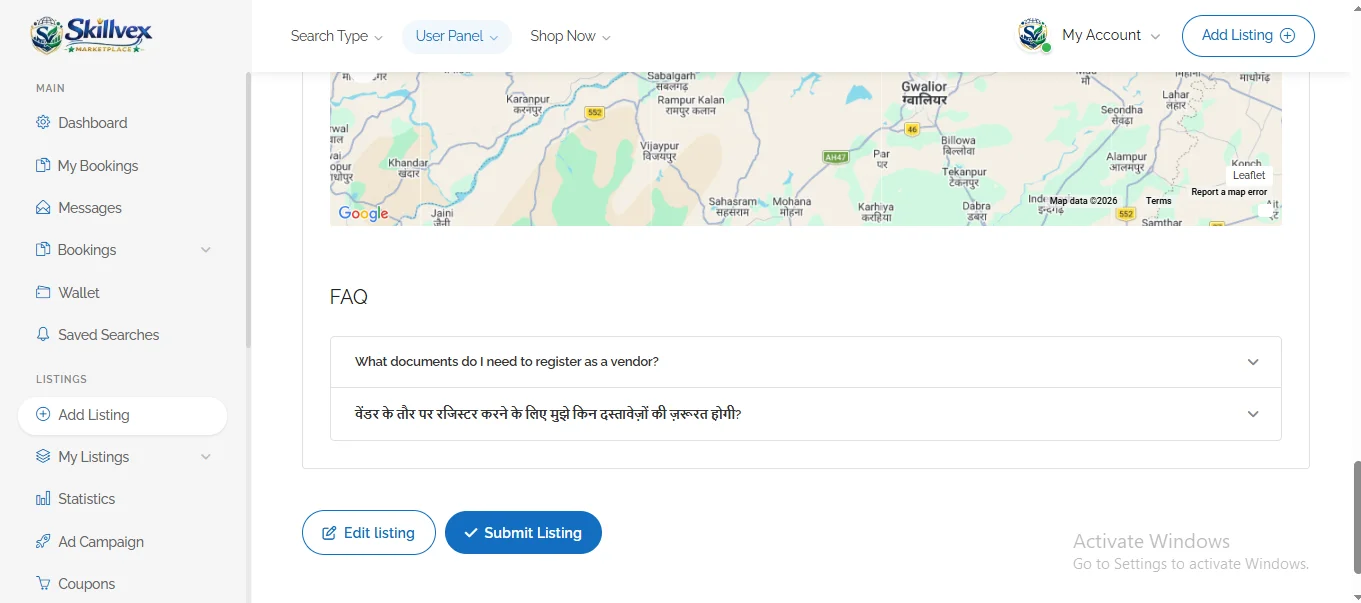
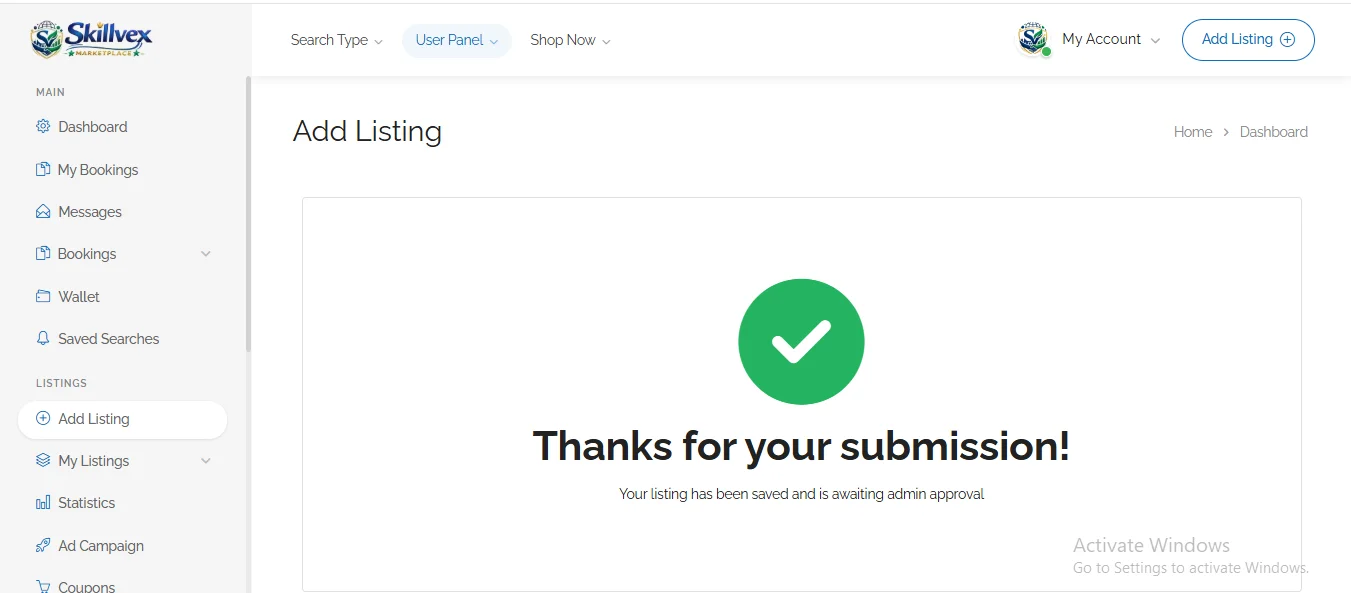
Before going live:-
- Preview your profile as customers will see it.
- Double-check all information for accuracy
- Test your contact number to ensure it’s correct
Click on the ‘Preview’ button. After clicking the ‘Preview’ button, you will see two buttons in the bottom-left corner: one labeled ‘Edit Listing’ and the other labeled ‘Submit Listing’. By clicking ‘Edit Listing’, you can make further changes to your business details; upon clicking ‘Submit Listing’, your business details will be received by the Skillvex team.
✅ Click ‘Submit Listing for Review’ or ‘Publish’
What happens next? The Skillvex team may review your profile for quality (typically within 24-48 hours). Once approved, your business goes live on the Skillvex marketplace!
💡 Section 3 :- Why Join Skillvex? Benefits for Vendors
Still wondering if creating a vendor account is worth your time? Here’s what you gain:-
📈 Increased Visibility:-
- Get discovered by thousands of active customers searching for services like yours.
- Appear in local searches based on customer location.
- Featured in “Trending Listings” and “Popular Near You” sections.
📊 Streamlined Operations:-
- Automated booking management reduces administrative work.
- Calendar integration prevents double-bookings.
- Automated reminders reduce no-shows by up to 60%.
📱 Direct Customer Communication:-
- Chat directly with customers before booking.
- Answer questions and build relationships
- Receive feedback instantly
⭐ Reputation Building:-
- Collect genuine reviews from verified customers
- Respond to feedback publicly (shows you care)
- Build trust through transparency
📈 Business Insights:-
- Track views, bookings, and revenue in real-time.
- Understand peak booking times and popular services.
- Make data-driven decisions to grow your business.
🎯 Section 3 :- Pro Tips for Vendor Success
Creating your account is just the beginning.
Here’s how to thrive on Skillvex:-
Complete Your Profile 100% 📊
- Profiles with complete information receive 3x more bookings. Don’t leave any field empty.
Update Availability Daily 📅
- Log in every morning to update your available time slots. Customers prefer vendors who show real-time availability.
Respond Within 1 Hour ⚡
- Quick responses to chat messages signal professionalism. Aim to reply within 60 minutes.
Encourage Reviews 🌟
- After every successful service, politely ask customers to leave a review. A simple “If you enjoyed our service, please share your experience on Skillvex” works wonders.
Add New Services Regularly 🆕
- Keep your profile fresh by adding new services or seasonal offers. This encourages repeat visits.
Use High-Quality Images 📸
- Blurry photos hurt credibility. Invest in good photography or use a recent smartphone with good lighting.
Monitor Your Analytics 📈
- Check your vendor dashboard weekly. Which services are popular? When are peak booking times? Use this data to optimize.
Promote Your Skillvex Profile 🔗
- Share your Skillvex link on WhatsApp, Instagram, and Facebook. “Book me directly on Skillvex” saves time and builds your online presence.
🎯 Section 3 :- Helpful Resources for Skillvex Users
To make the most of the platform, explore these related guides:
For Customers:-
👉 [How to Use Skillvex? The Ultimate Step-by-Step Guide for Seamless Bookings]
For Vendors (You’re Here!):-
👉 [How to Create a Vendor Account on Skillvex? Complete Step-by-Step Guide] You’re reading it! Bookmark this for reference
Platform Overview :-
👉 [What is Skillvex? Your Complete Guide to the Best Online Booking Platform] Understand the vision behind Skillvex and how it benefits everyone
❓ Frequently Asked Questions (FAQ)
How do I create a vendor account on Skillvex?
Go to Skillvex.com, click “Sign In,” button. Then navigate to the Registration tab and select the option that suits your needs—either “Guest” or “Owner.” Enter your details, including your mobile number, and then enter the 4-digit OTP you receive. Your account will be created instantly. Click for more information. 👉 Click here
Is there any fee to create a vendor account?
No, the vendor account is completely free. You can list your business/Service for free.
How long does it take to approve my vendor account?
Approval usually takes 24-48 hours. Our team verifies your details to maintain quality. You will receive a notification by email or SMS once approved.
Can I list multiple services under one vendor account?
Yes, absolutely. You can create separate listings for each service with individual pricing, descriptions, and photos under the same account.
What documents do I need to register as a vendor?
No documents are needed to start. However, to become a trusted vendor, we recommend keeping documents like a business registration, GST certificate, or ID proof ready. Trusted vendors get more bookings.
Can I sell products on Skillvex, or only services?
Skillvex is mainly for services and rentals. If your business also includes products, you can mention them in your service listings. You can tell, but you cannot sell.
How do I receive payments from customers?
When a customer books your service, they have two ways to pay: Online or Cash.
(A) Online Payment
- The customer pays online at the time of booking.
- The money first comes to Skillvex. You can see it in your Wallet on your dashboard.
- Skillvex charges a 7% fee on the booking amount.
- To get your money, you need to add your payout details. Go to your Wallet, click on “Payout Methods,” and add your Bank Transfer details (like account number, bank name, and SWIFT code) or your PayPal email.
- After you add your details, our team will transfer the remaining balance (after deducting the 7% fee) to your bank account or PayPal.
(B) Cash Payment
- If a customer chooses “Cash Payment,” they will pay you directly in person (at your shop or service location).
- Important: Even if you take cash, the 7% platform fee still applies.
- You must pay this 7% fee to Skillvex separately by visiting a nearby branch or through another agreed method.
- Please note: Skillvex is not responsible for the cash transaction between you and the customer.
What if I have multiple business locations?
You do not need a separate account for each location. You can add multiple branches to your main account, and customers will automatically see the branch nearest to them.
How do I manage bookings and customer requests?
Your vendor dashboard makes it easy. You will find sections for “Current Bookings,” “Pending Requests,” and “Chat History.” You will also receive notifications by email and SMS.
I have forgotten my password. How do I access my vendor account?
(A) Go to the “Log In” tab, enter your email or username to reset your password, and then create a new password.
(B) You do not need a password. Click on “Sign In,” enter your mobile
Can I edit my services after publishing?
Yes, you can edit them anytime. Go to your vendor dashboard, click “My Listings,” and select the service you want to change. The updates will appear as soon as you save them.
How do I contact Skillvex support if I face issues?
Click the chat box at the bottom right corner of the website to speak with our support team instantly. We usually reply within minutes. Email support is also available.
🏁 Section 3 :- Conclusion: Start Your Vendor Journey Today
Creating a vendor account on Skillvex is your first step toward digital success. In today’s competitive market, online visibility isn’t optional—it’s essential. Whether you’re a seasoned business owner or just starting, Skillvex provides the platform, tools, and audience you need to grow.
Remember these key points: :-
✅ Registration is free and takes less than 10 minutes
✅ Complete profiles get more bookings
✅ Quality photos and clear descriptions attract customers
✅ Regular updates and quick responses build reputation
✅ Reviews are your best marketing tool
Thousands of businesses have already joined the Skillvex marketplace and transformed their operations. From small home-based services to large enterprises, vendors across India are discovering the power of online bookings.
Ready to grow your business? 📈
👉 Visit:- Skillvex.com right now
👉 Click “Sign In” and select “Register” Make sure you select the “Owner” tab.
👉 Complete your profile in 10 minutes.
👉 Start receiving bookings from Day 1
Your future customers are searching for you on Skillvex. Join the Skillvex family today and watch your business reach new heights!


