
How to Use Skillvex?
How to Use Skillvex? A Step-by-Step Guide to Booking Without Any Conditions.
Introduction: Why You Need This Guide 📍
In today’s fast-paced world, your time is incredibly precious. Switching between different apps to find a plumber, making phone calls to book salon appointments, or scouring multiple websites for a rental car are things of the past. Skillvex brings together everything you need on a single, powerful platform.
But how, exactly, do you use it? Whether you are tech-savvy or new to online services, this guide will walk you through every click and tap in detail. We will show you exactly how to use Skillvex to book services in just a matter of minutes.
If you are new here and wondering what Skillvex actually is, we recommend that you first read our comprehensive guide: [What is Skillvex? Your Complete Guide to the Best Online Booking Platform] (Internal Link). That guide explains the rationale behind this platform’s creation; this guide, however, focuses entirely on *how* to use it.
So, let’s get started and unlock the full potential of your digital neighborhood.
🧭 How to use Skillvex as a guest or customer.
Using Skillvex to find and book reliable local services is as simple as ordering food online. In just a few minutes, you can go from searching to securing your appointment. Here is your four-step roadmap.
Step 1: Get Your Digital Key (Account Setup) 🔑
Think of your Skillvex account as your personal command center. It stores your bookings, favorites, and chat history. Setting it up takes less than 30 seconds.
Search:- 🔍 Open your Google/Chrome browser and search for Skillvex.com.
Find the Gate or Door Icon:- 🧐 Locate an icon in the upper-right corner of the screen that resembles a gate or a door. Click on that icon. Then, click on the “Register” tab.
Choose Your Path:- ✅ You will see two tabs—”Guest” and “Owner.” Make sure you select the “Guest” tab. (Don’t worry, if you’re a business owner, we will cover the Owner process later in this guide!)
Fill in Basic Information:- 📖 A simple form will open; use it to create your username (e.g., Suryansh), enter a valid email address, and set a strong password that you can easily remember. Enter your first and last names.
Verify with OTP:- 🔏 Enter your mobile number. Submit the form. After submitting the form, check your mobile number or email for a 4-digit code (OTP). Verify that code (OTP). As soon as you enter the code (OTP), your mobile number or email will be verified. Your account will become active immediately.
🎉 Congratulations! Your account is created. This one-step verification ensures that you’re interacting with real, verified users and businesses.
Pro Tip:- 🚀 Using your email helps us send you booking confirmations and reminders, so you never miss an appointment.
Step 2: Find the Service You Need 🔍
Now for the fun part—finding exactly what you’re looking for. Skillvex offers two main ways to search:-
Search by Location and Category 📍
On the homepage, you will see a colorful search bar. Simply enter your current location into the search bar, select a category from the dropdown menu, and click the Search button. This is the fastest way to explore.
Click on “Book Service” 🧖
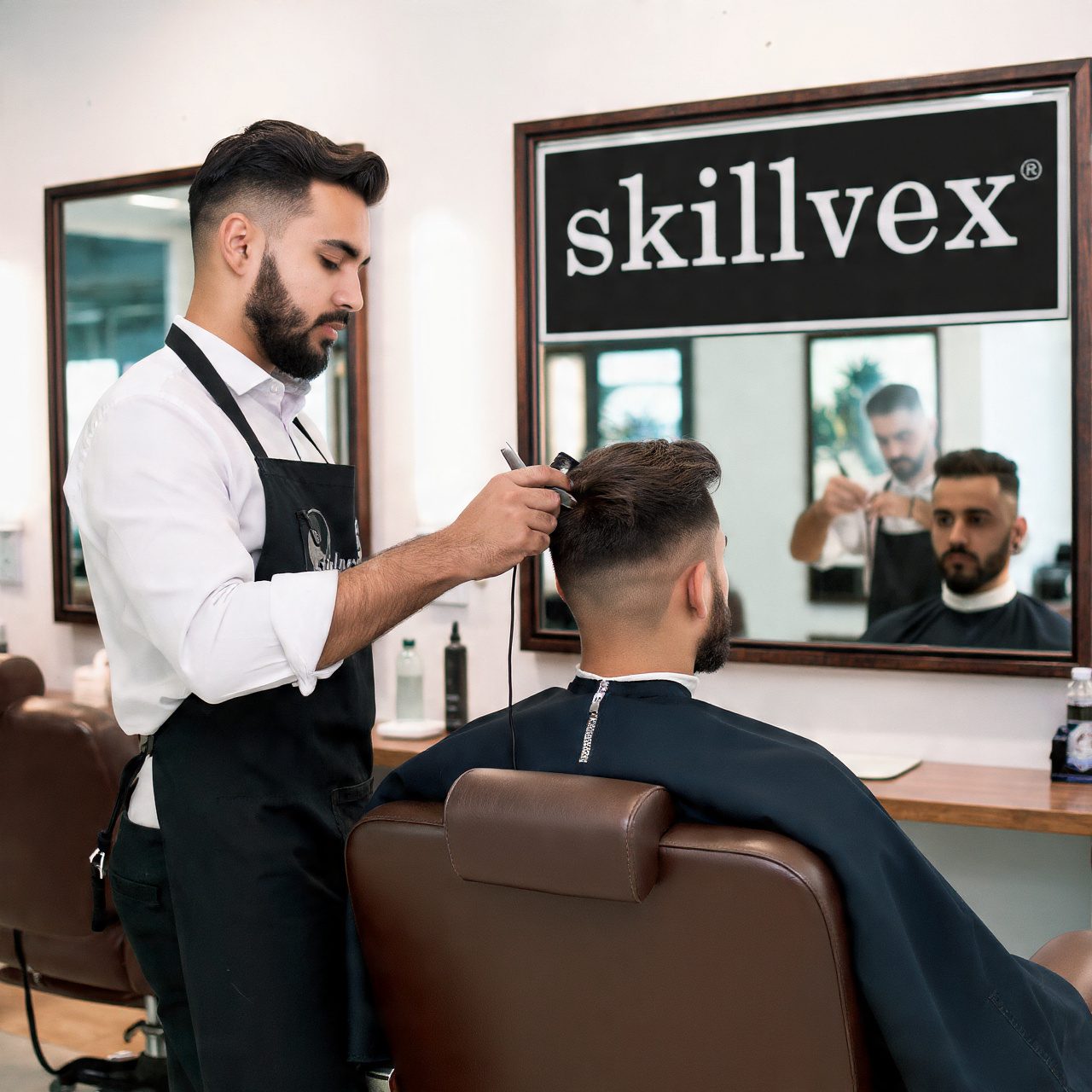
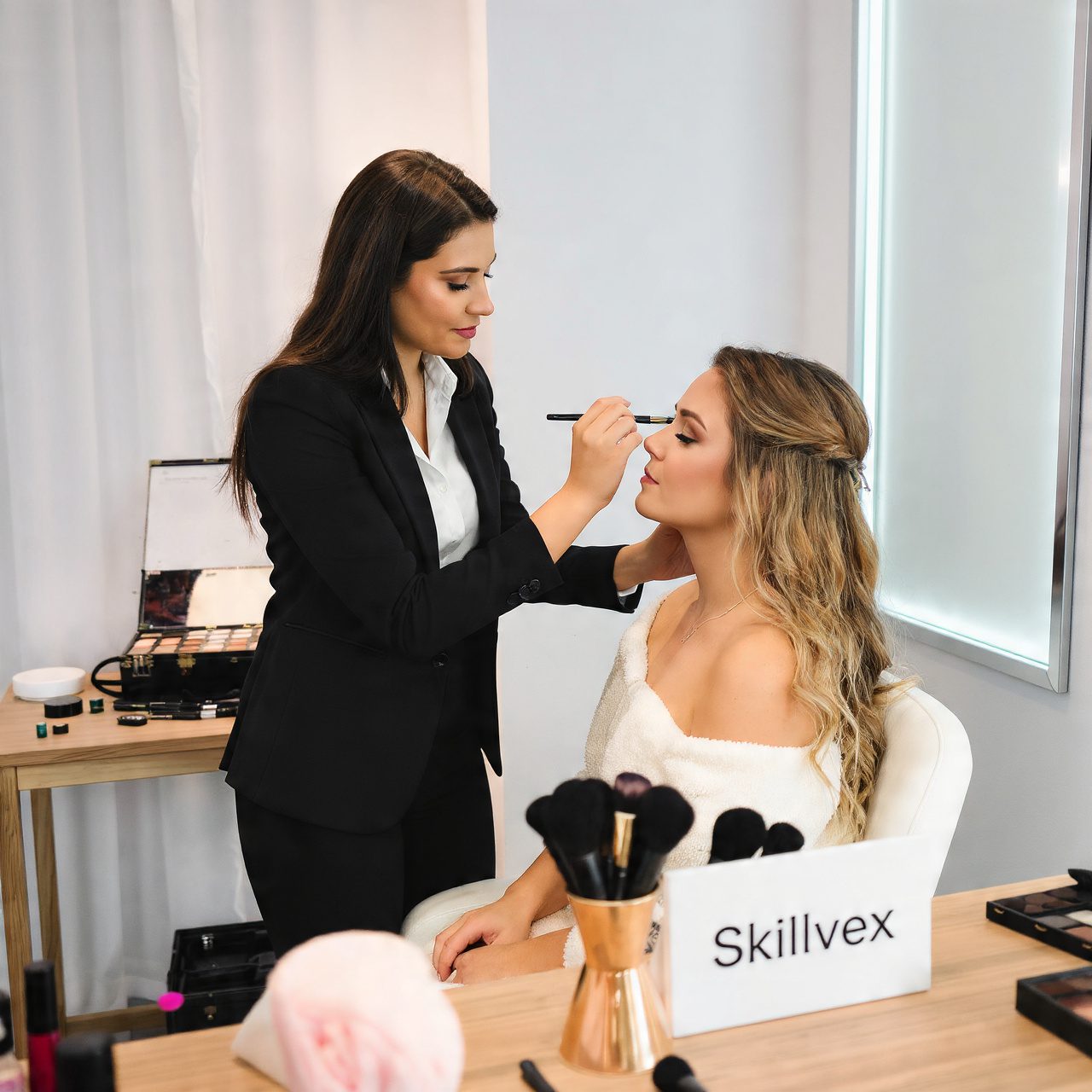
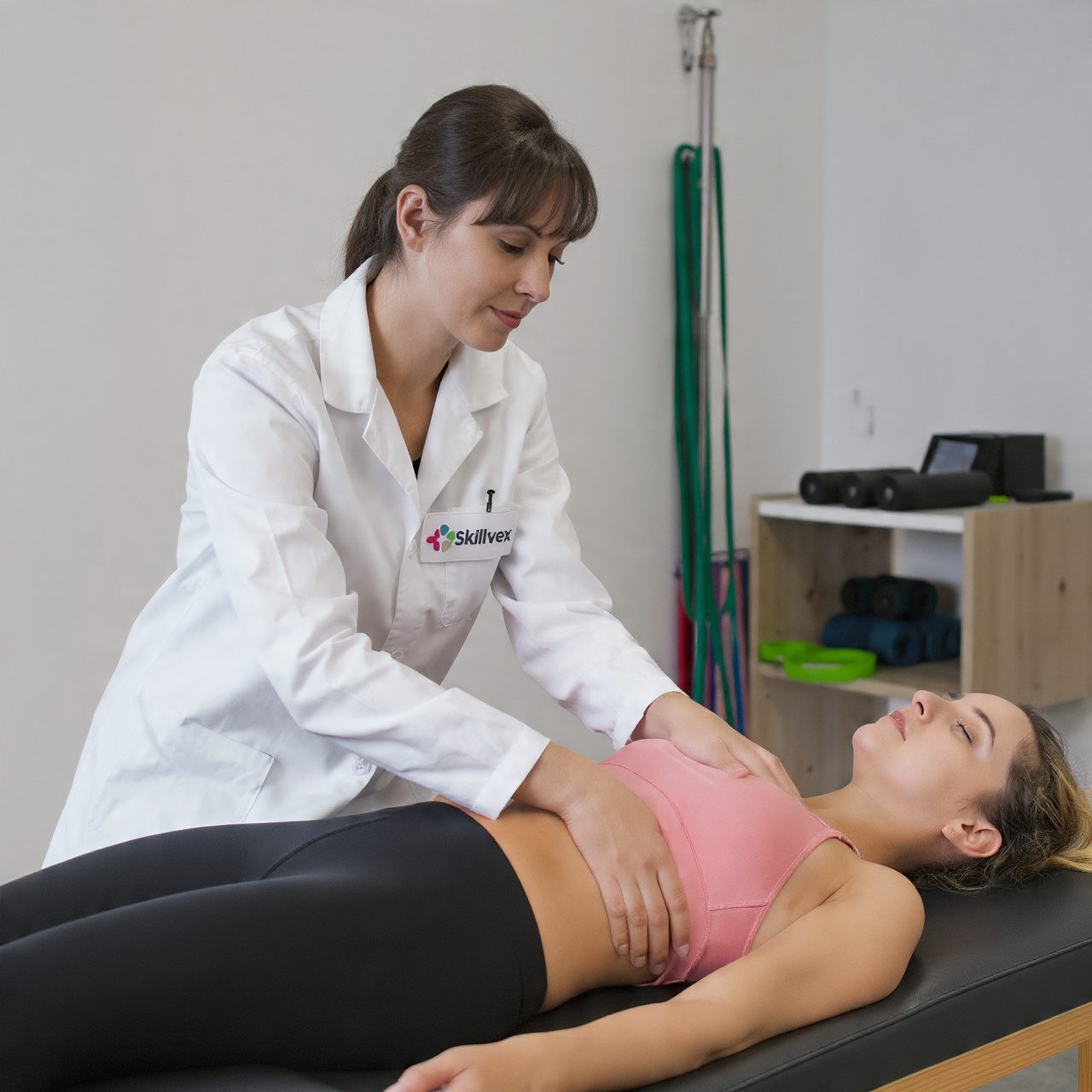

For Salons & Beauty Parlors—whether you need a haircut or a massage.
Click on “Food & Drink Hubs” 🍽️ for Cafes & Restaurants—ranging from local *dhabas* to hotels.
Click on “Cars & Vehicle Rentals”🚗 to rent a car or bike for your weekend trip.
In addition to these, many other categories are also included. For information on more categories, download the full list of categories now.
Step 3: Evaluate & Choose Your Provider 🧐
Once you click on a listing, you’ll enter the business’s profile page. Think of this as their digital storefront. Take a moment to explore:
- Check the Details:- Look at the services offered, their prices, the exact location, and business hours.
- Read Genuine Reviews:- Scroll down to the reviews section. What are other customers saying? Look for consistent positive feedback about cleanliness, punctuality, or quality of work.
- View Photos & Videos:- Browse their media gallery to see the ambiance of a café, the equipment at a gym, or examples of a salon’s work. A picture speaks volumes.
Step 4: Book with One Click ✅
Found your perfect match? Securing your spot is instant and hassle-free.
- A calendar will pop up showing the provider’s real-time availability. Select your preferred date and time.
- Click the “Book Now” or “Make Reservation” button.
- Review your booking summary and confirm.
You’re done! You’ll receive an instant confirmation.